


INTRODUCTION
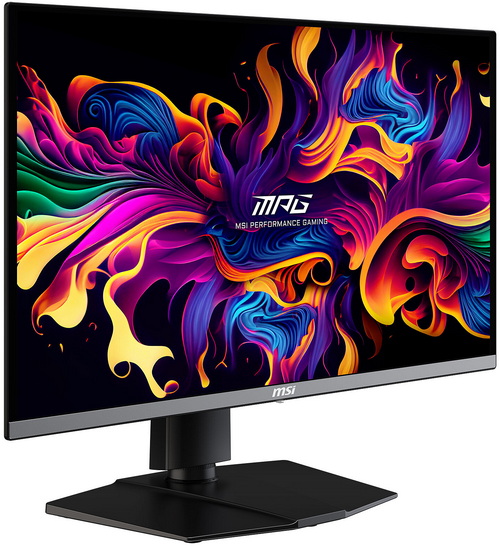
Gaming monitors have evolved through TN, IPS, VA, and OLED panels, each shaping how players experience speed, contrast, and color, but the real shift in recent years has come from QD‑OLED technology, which merges OLED’s perfect blacks and instant pixel transitions with quantum‑dot color conversion to deliver higher luminance, richer saturation, and dramatically stronger HDR performance. Unlike traditional OLED approaches that rely on white subpixels and lose vibrancy at peak brightness, QD‑OLED maintains full‑strength RGB output, giving games deeper contrast, cleaner motion, and a level of visual punch that feels genuinely next‑generation. It’s within this rapidly maturing landscape that MSI positions the MPG 271QR QD-OLED X50, a 27‑inch gaming monitor built around the latest 3rd generation QD‑OLED panel iteration by Samsung engineered to push clarity, responsiveness, and HDR impact even further.
MSI is a world leader in AI PC, gaming, content creation, business & productivity and AIoT solutions. Bolstered by its cutting-edge R&D capabilities and customer-driven innovation, MSI has a wide-ranging global presence spanning over 120 countries. Its comprehensive lineup of laptops, graphics cards, monitors, motherboards, desktops, peripherals, servers, IPCs, robotic appliances, vehicle infotainment and telematics systems, and EV charger are globally acclaimed. Committed to advancing user experiences through the finest product quality, intuitive user interface and design aesthetics, MSI is a leading brand that shapes the future of technology.
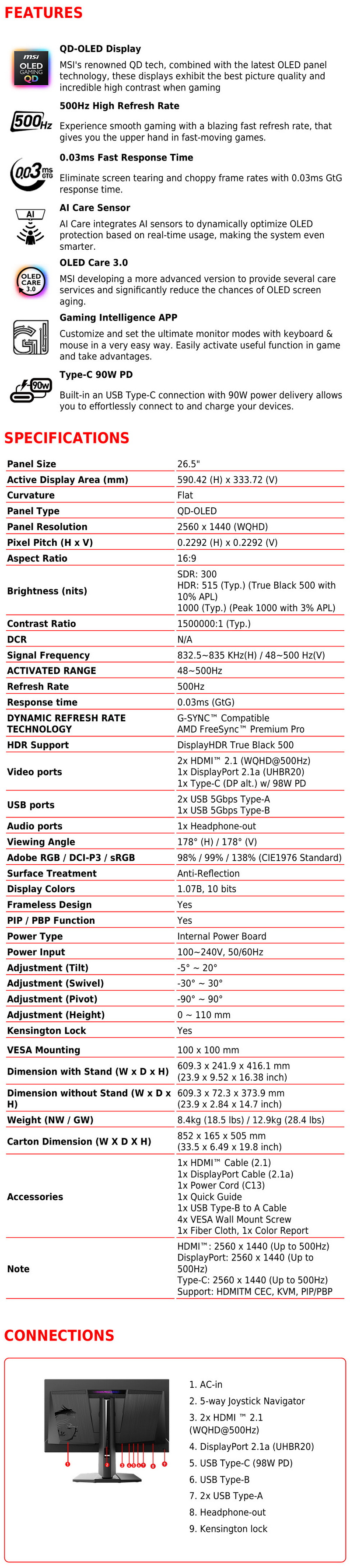
The MPG 271QR QD‑OLED X50 centers on a 27‑inch (26.5-inch to be precise with a PPI of 110) 2560x1440 QD‑OLED panel (3rd gen Samsung with EL Gen 2 materials) running at an extreme 500Hz with a 0.03ms GtG response time, backed by VESA ClearMR 21000, VESA DisplayHDR True Black 500, 300cd/m² SDR brightness, up to 1.000cd/m² peak HDR brightness, 1.500.000:1 contrast ratio, 99% DCI‑P3 coverage, and factory calibration to Delta E ≤ 2, while input lag is kept to a minimal 1.5ms for competitive play. Connectivity is fully next‑gen with DisplayPort v2.1a (UHBR20) delivering up to 80Gbps for lossless 2K/500Hz output, HDMI v2.1, and USB‑C with DP Alt Mode plus 98W power delivery, complemented by granular image controls including gamma, six‑axis color, and MSI’s QD Premium Color tuning. Moving into features, the monitor integrates MSI’s AI Care Sensor, a CMOS + NPU system that checks for user presence every 0.2s to enable wake‑on‑approach, auto‑lock, adaptive dimming, and automatic brightness and color‑temperature adjustments, all tied into OLED Care 3.0, which adds pixel shift, pixel refresh, logo luminance control, boundary protection, and a custom thermal solution using a dedicated heatsink and graphene film, reinforced by a three‑year burn‑in‑included warranty. Gaming tools include G‑SYNC and FreeSync support, AI Navigator, AI Menu, AI Crosshair, AI Vision, multi‑stage aim magnifier, and firmware‑upgradable software through MSI’s apps, while Mystic Light and Windows Dynamic Lighting handle synchronized RGB. The monitor rounds out with a central 5‑way joystick, integrated KVM switch, remote‑control support via the MSI apps, and a design built for high‑end, latency‑critical PC gaming.
SPECIFICATIONS AND FEATURES
PACKAGING AND CONTENTS

The company logo, main features, screen size and a picture of the monitor’s front are all placed at the front of the box.

 A sticker with the main product specifications is placed on the left side while on the right side we find the energy certification stickers for both the EU and UK.

The rear is identical to the front, this time however we see a picture of the monitor’s rear.

Typically, the monitor is wrapped inside a synthetic cover and placed between two thick pieces of cardboard.

Along with the MPG 271QR X50 and its two-piece stand inside the box you’ll also find two power cords (EU/UK), wall mount screws, cleaning cloth, monitor test report, two energy certification stickers (EU/UK), HDMI cable, DP cable, USB host cable, EU regulatory notes paper and the quick start guide.
THE MPG 271QR QD-OLED X50

The MPG 271QR QD-OLED X50 monitor features a diagonal size of 67.31cm (26.5-inches).

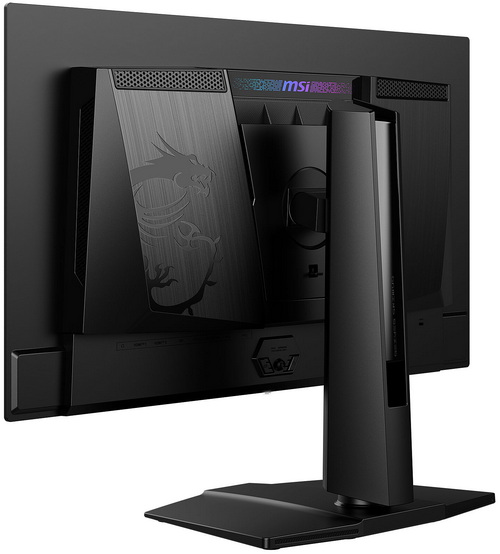
The rear features the company logo and is largely perforated on the sides and the top/bottom.

At the rear we also find the usual clip-on design for the stand and the VESA 100x100mm mounting area.

To attach the stand, you just need to place it here and push it downwards (this is something you need to do when you take the screen out of the box - safety concerns - but since I take pictures of everything this is the way for me).

After that just attach the base and use the thumbscrew to secure it onto the stand.

27-inch gaming monitors are very popular among gamers and I expect the same to be the case for the MPG 271QR QD-OLED X50.


The stand is height adjustable and so at its lowest it keeps the monitor roughly 57mm from the desk while at its highest that number climbs to around 174mm.

At the front we also find the AI Care Sensor that detects user absence and automatically turns off the screen to initiate panel refresh and the power LED.


The bezels of the MPG 271QR QD-OLED X50 are thin and more specifically 5mm for the top and almost 7mm for the left and right ones (17mm for the bottom one).


Turning the screen around we find the company logo on the left side, RGB LED bar on top, stand with cable routing holes on it, 5-way joystick (navi key), macro button (activates the MSI gaming intelligence application) and the power on/off button.


We also find the power port, two HDMI v2.1 outputs, DP v2.1a output, USB-C PD 98W port, USB-B host port, two USB-A 3.2 ports and a 3.5mm port.


Ergonomic stands are not something we see a lot with gaming models so I was glad to see that the MPG 271QR QD-OLED X50 can tilt (5 degrees forward, 20 degrees backwards), pivot (90 degrees on either side) and swivel (30 degrees on either side).
OSD MENUS
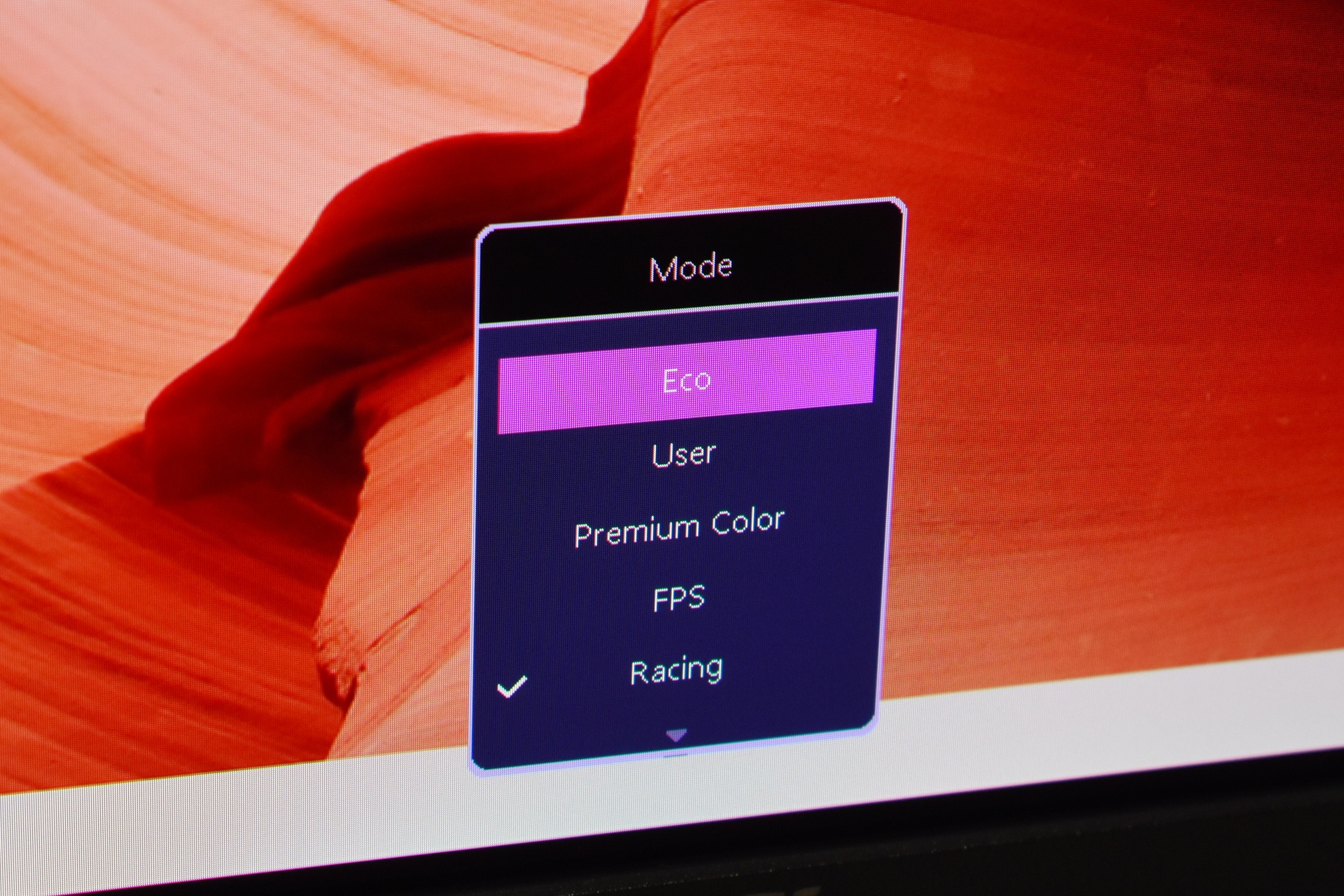
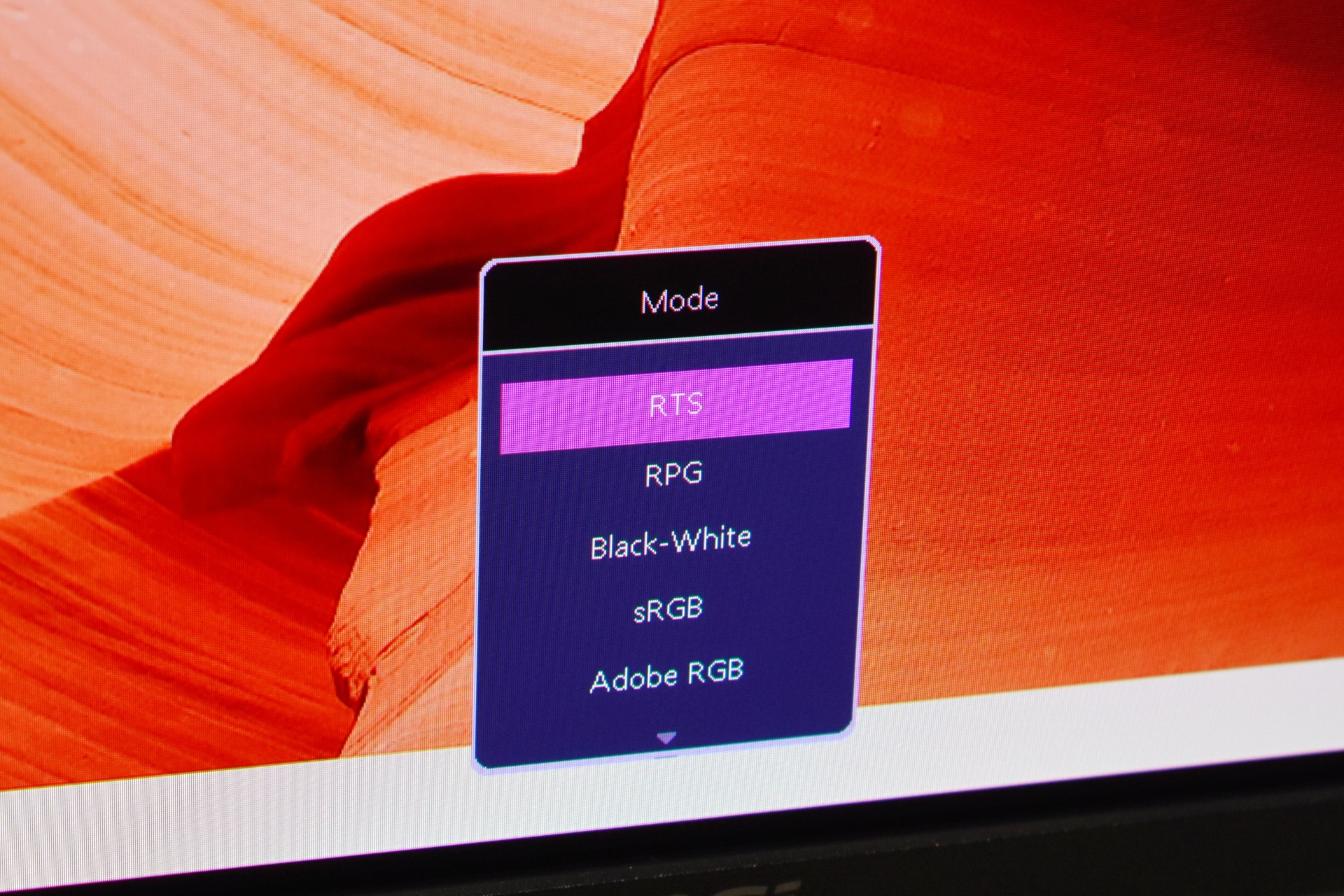
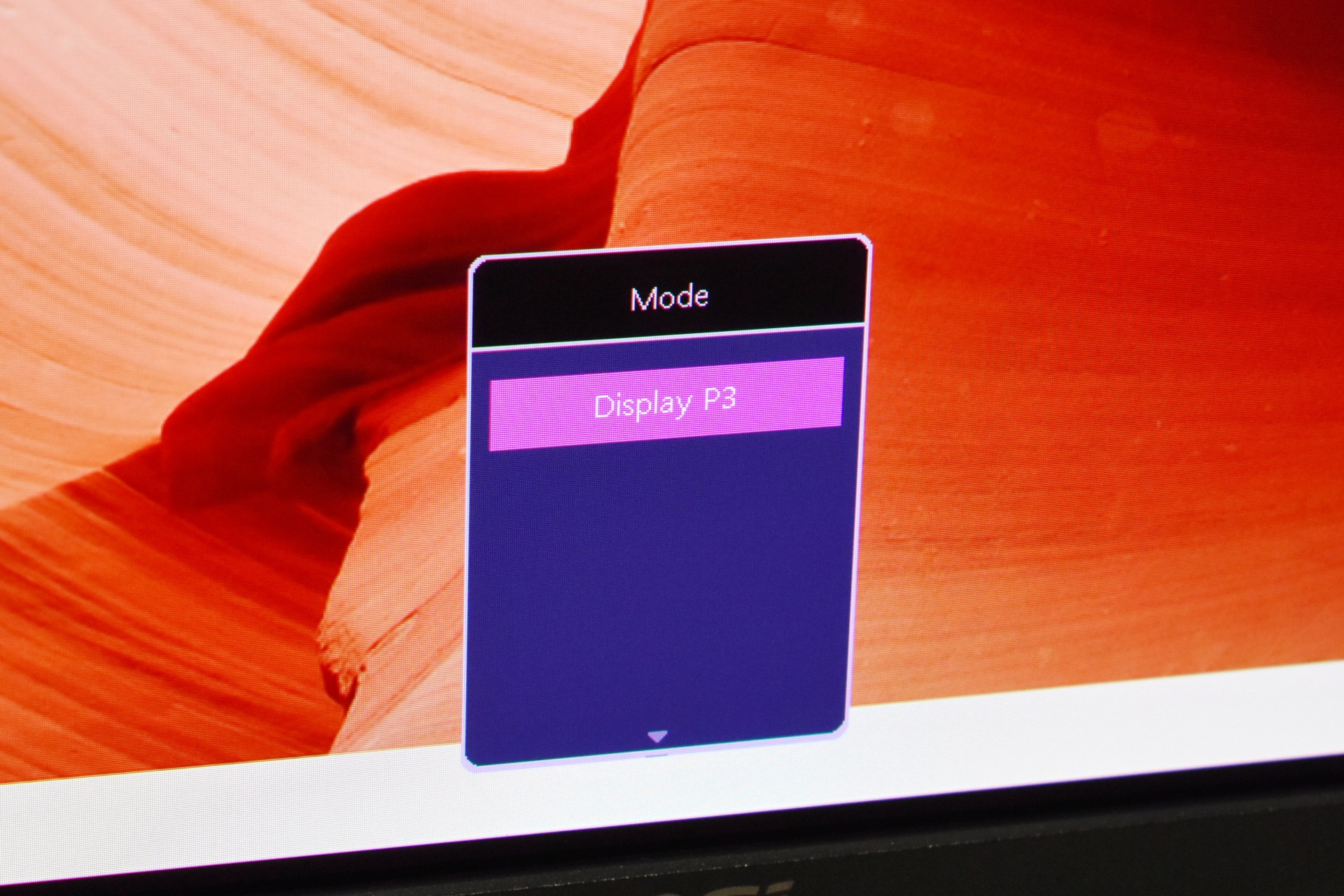
From the Mode menu, the user can switch between different picture presets such as Eco, User, Premium Color, FPS, Racing, RTS, RPG, Black‑White, sRGB, Adobe RGB, and Display P3. Each preset adjusts color tuning, contrast behavior, and gamma to match gaming, productivity, or color‑accurate workflows. The user simply selects the mode that best fits the current task.
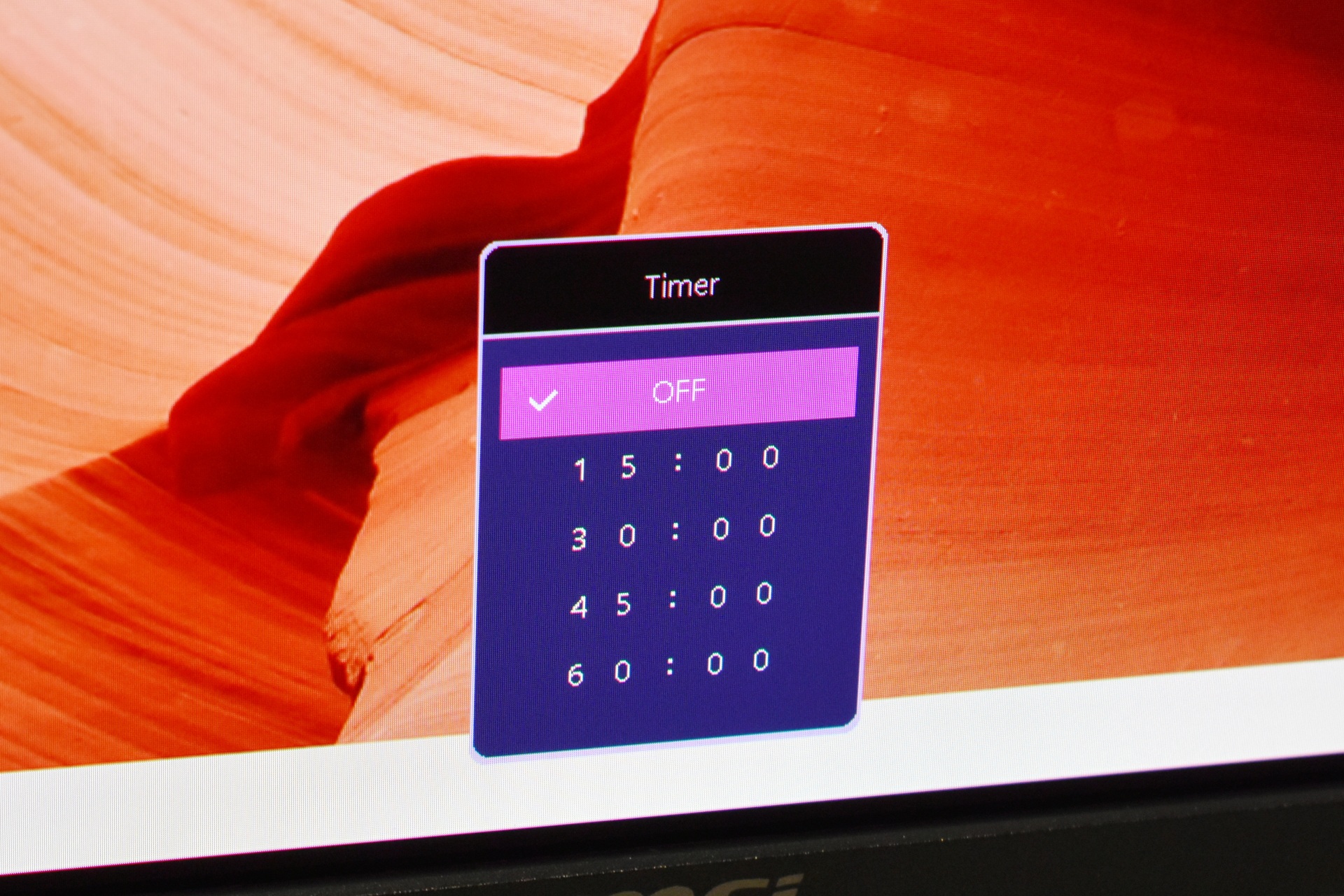
This timer menu allows the user to enable an on‑screen countdown timer. The timer appears on the screen as a visual reminder during gaming sessions or productivity tasks.
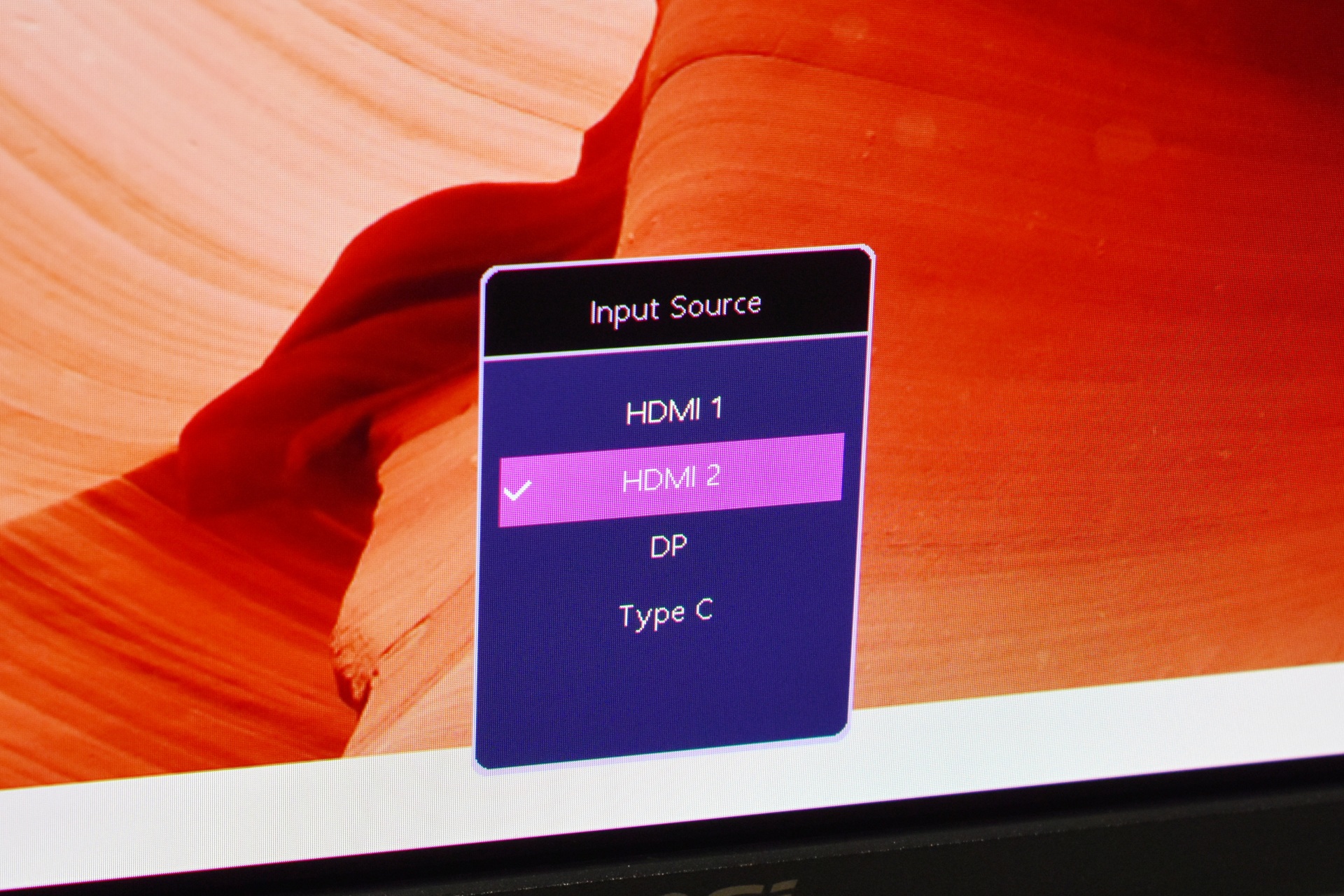
From the input source menu the user can switch the active video input between HDMI 1, HDMI 2, DisplayPort, and Type‑C.
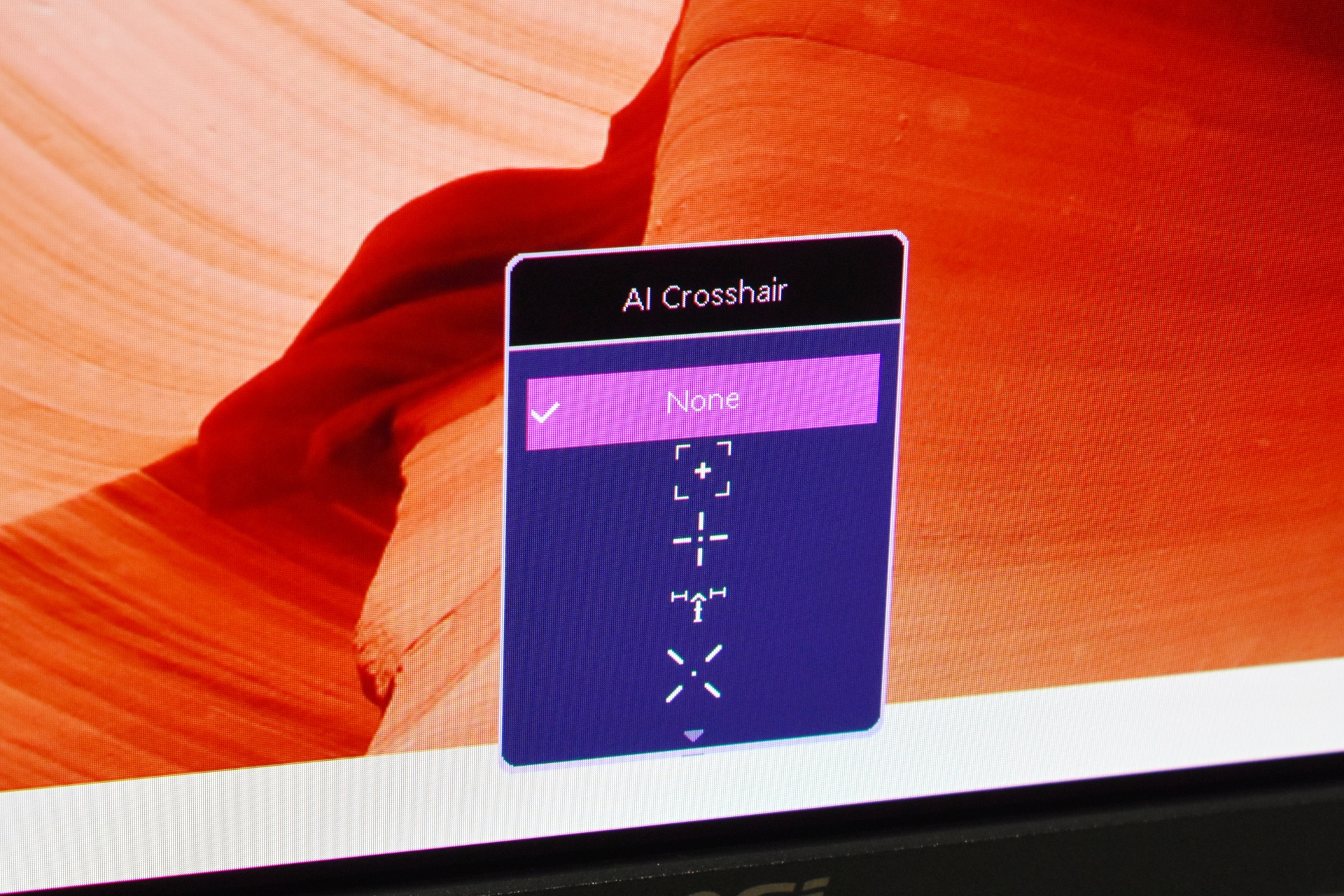
The AI crosshair section lets the user enable an on‑screen crosshair overlay, this is intended for games that lack built‑in crosshairs or for players who want a consistent aiming reference.
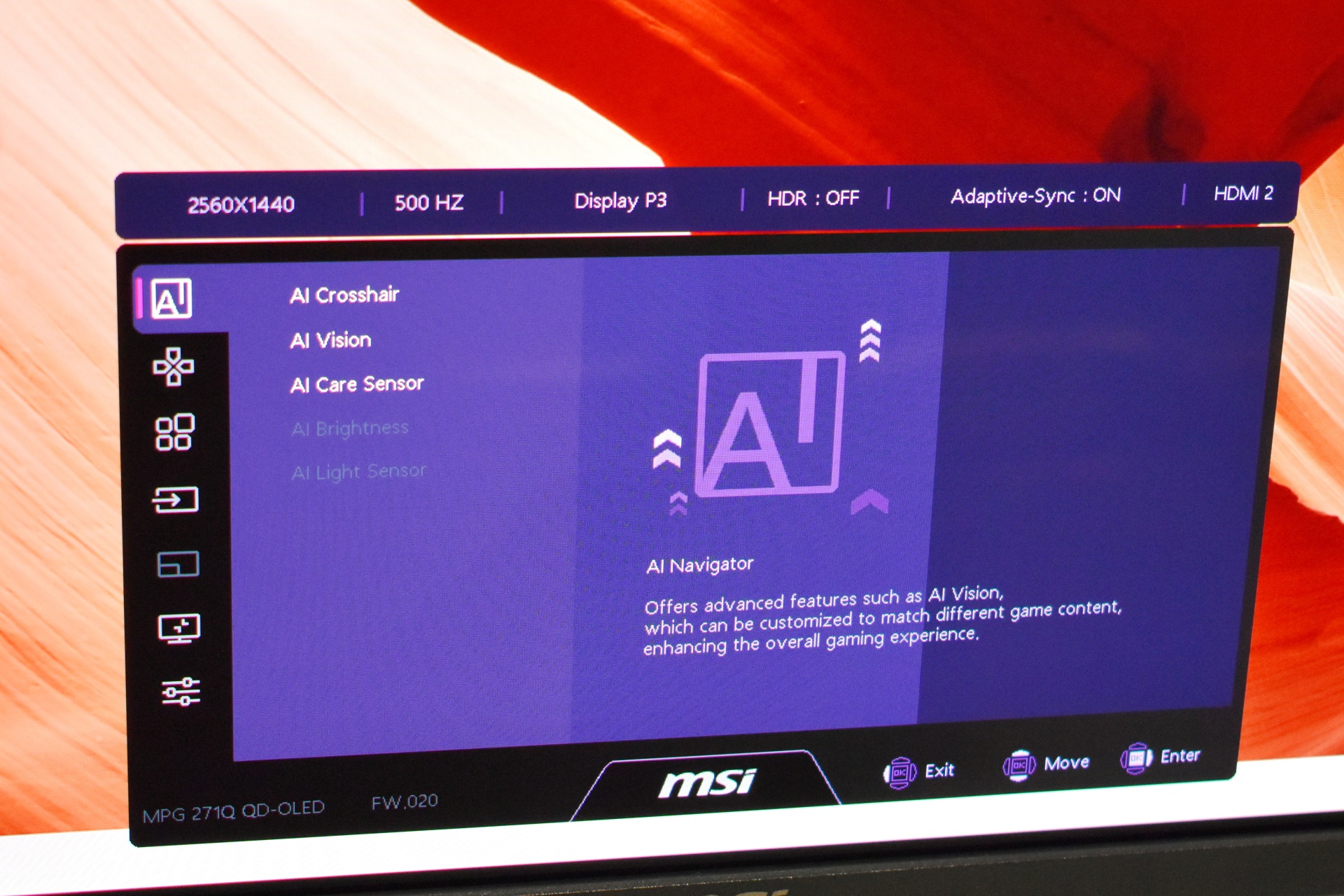
From this menu, the user can access all AI‑assisted features: AI Crosshair, AI Vision, AI Care Sensor, AI Brightness, and AI Light Sensor.
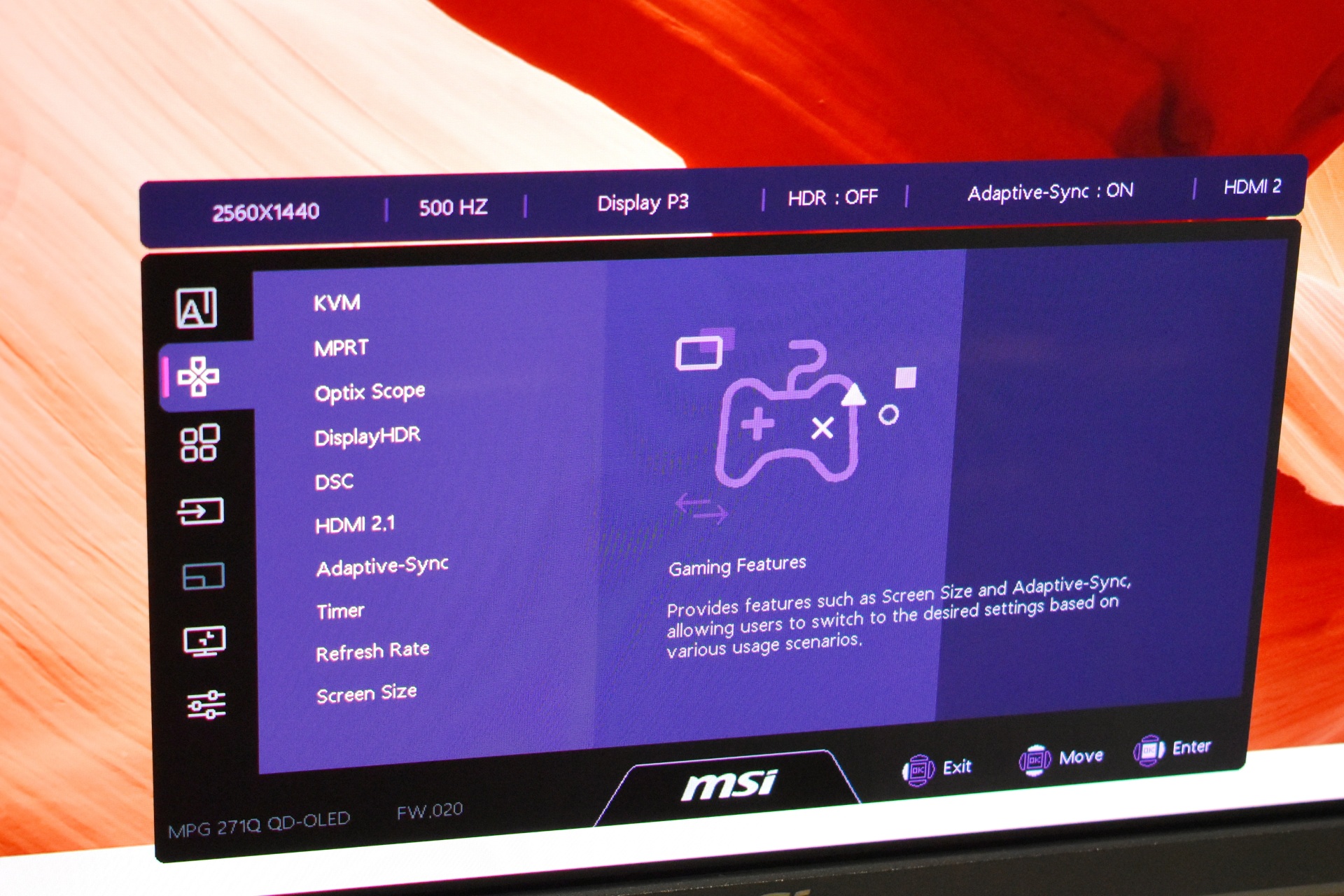
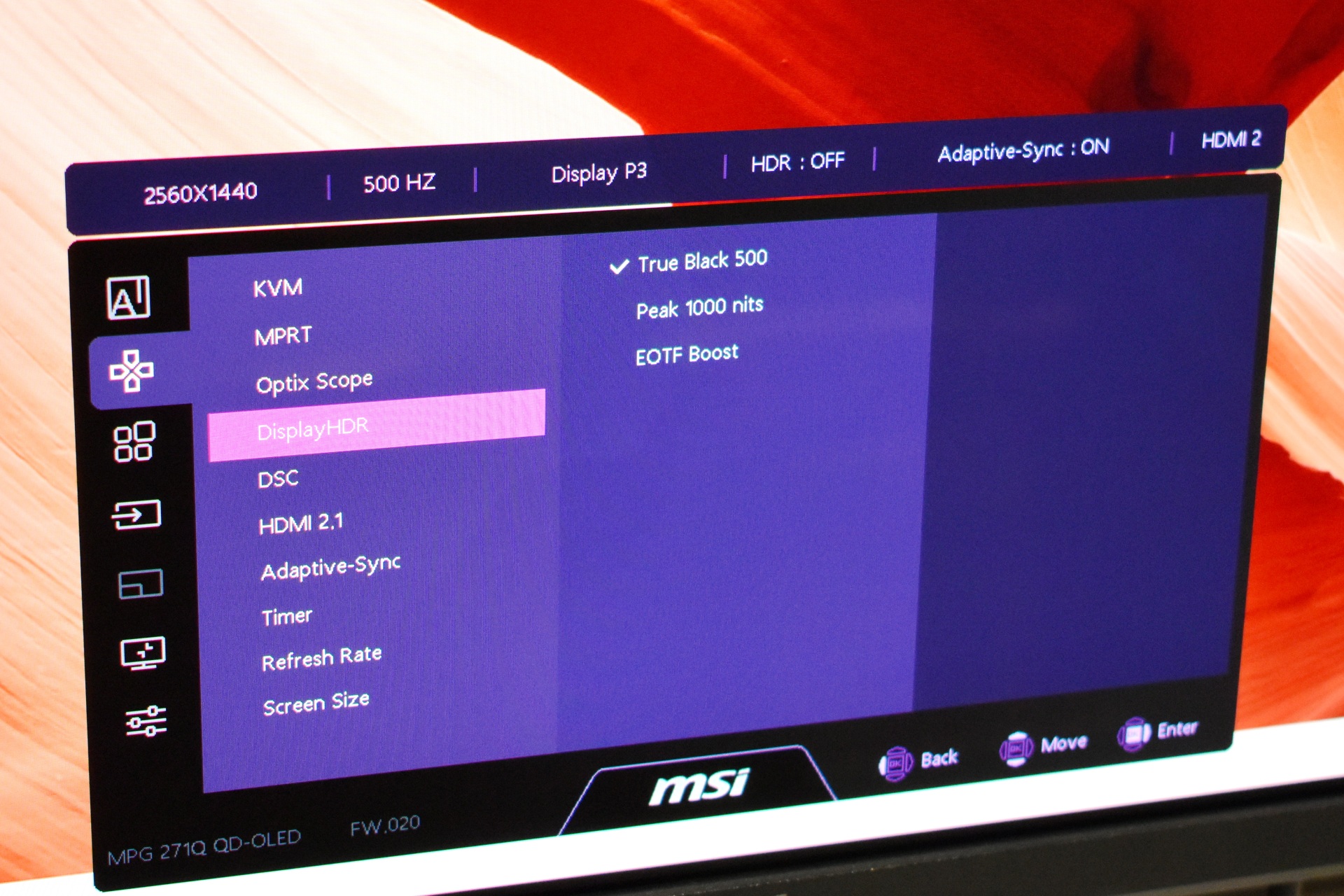
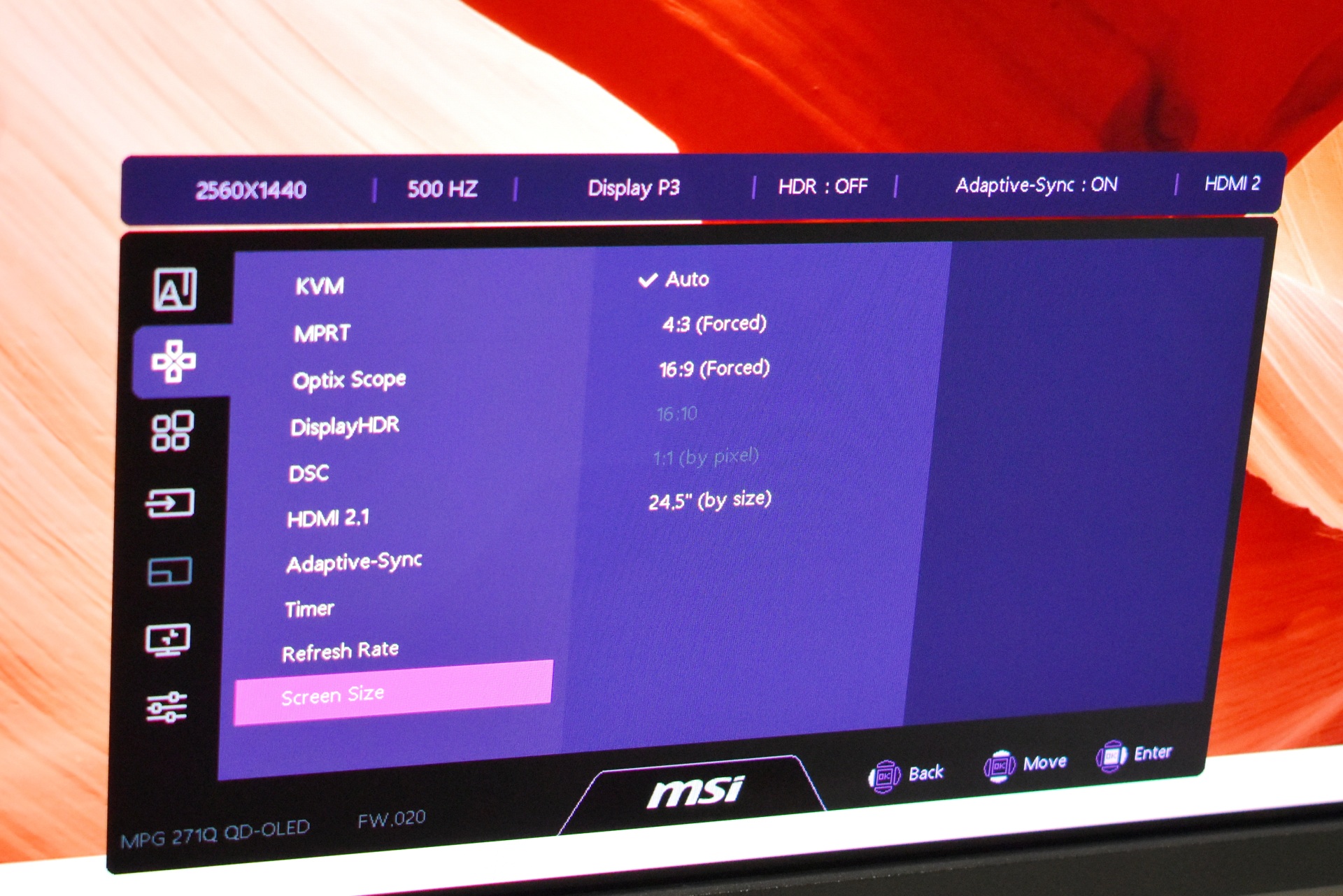
This section provides quick access to gaming‑oriented toggles. The user can enable or adjust KVM, MPRT, Optix Scope zoom levels, DisplayHDR modes, DSC, HDMI 2.1 behavior, Adaptive‑Sync, the on‑screen timer, refresh‑rate display, and screen‑size emulation.
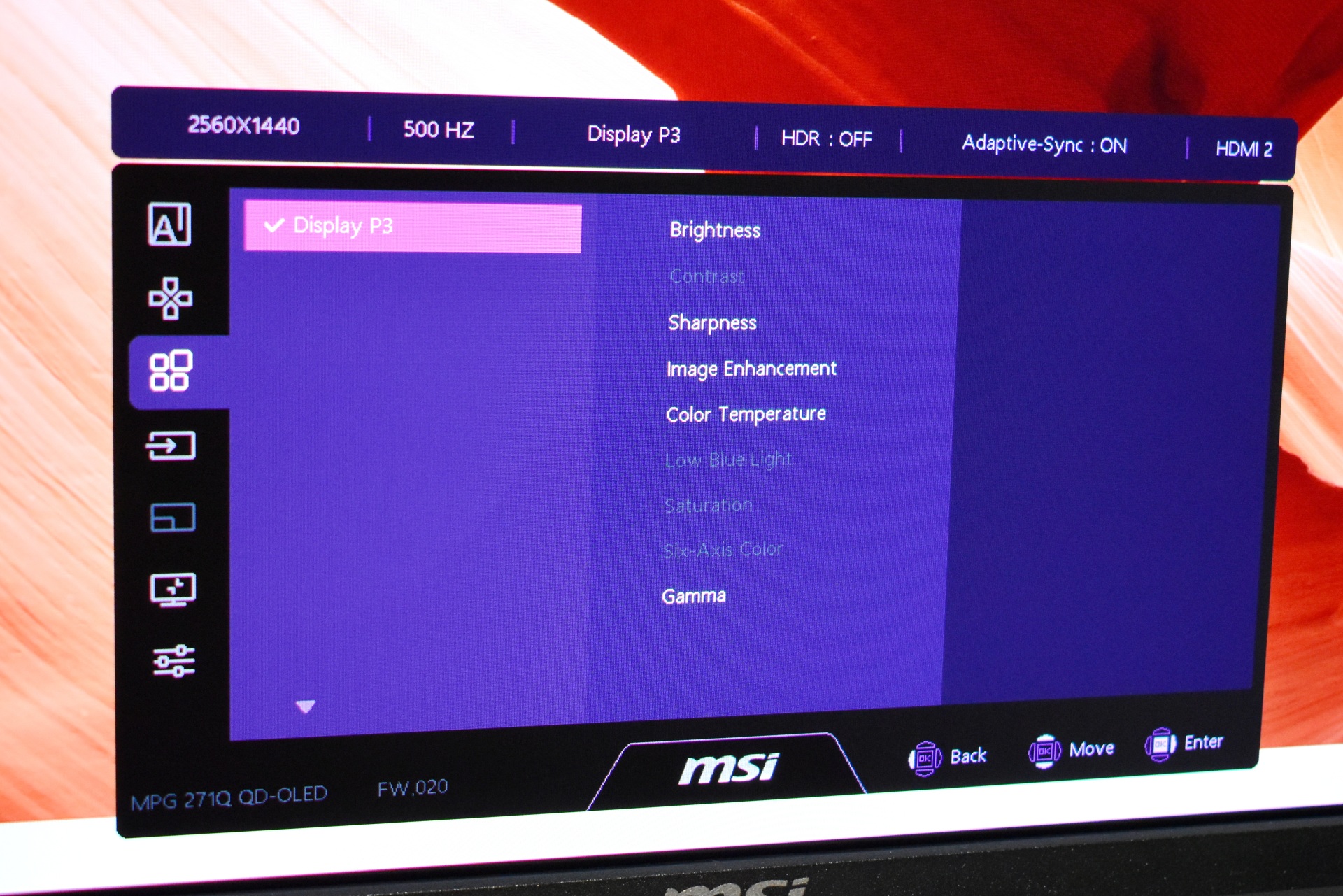
In this section, the user can fine‑tune all image parameters of the selected color mode. Controls include brightness, contrast, sharpness, image enhancement, color temperature, low‑blue‑light mode, saturation, six‑axis color tuning, and gamma.
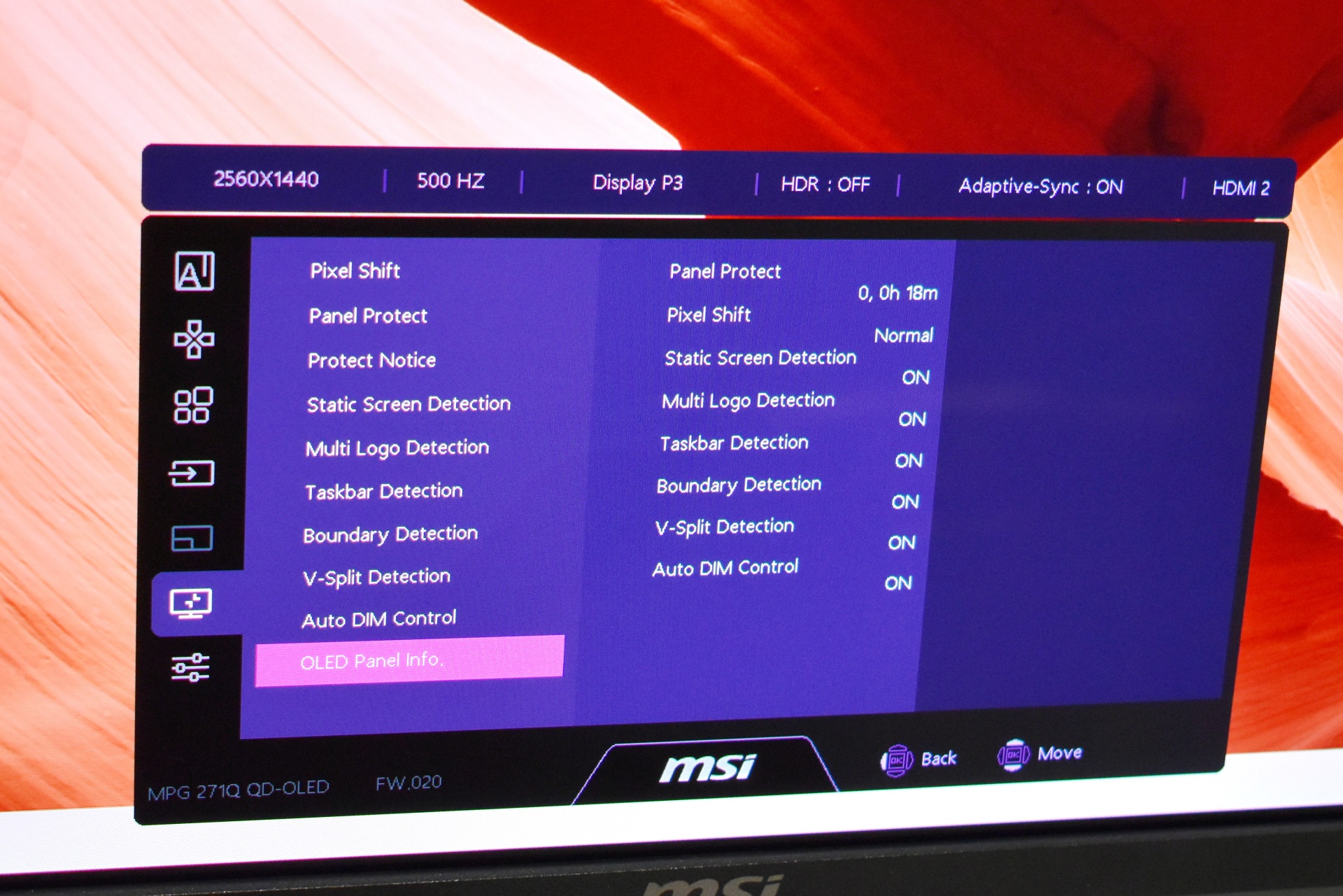
This menu provides all OLED maintenance and burn‑in prevention tools. The user can check panel‑protect runtime, enable pixel shift, and toggle protections such as static‑screen detection, multi‑logo detection, taskbar dimming, boundary detection, V‑split detection, and auto‑dim control. It also displays OLED panel information.
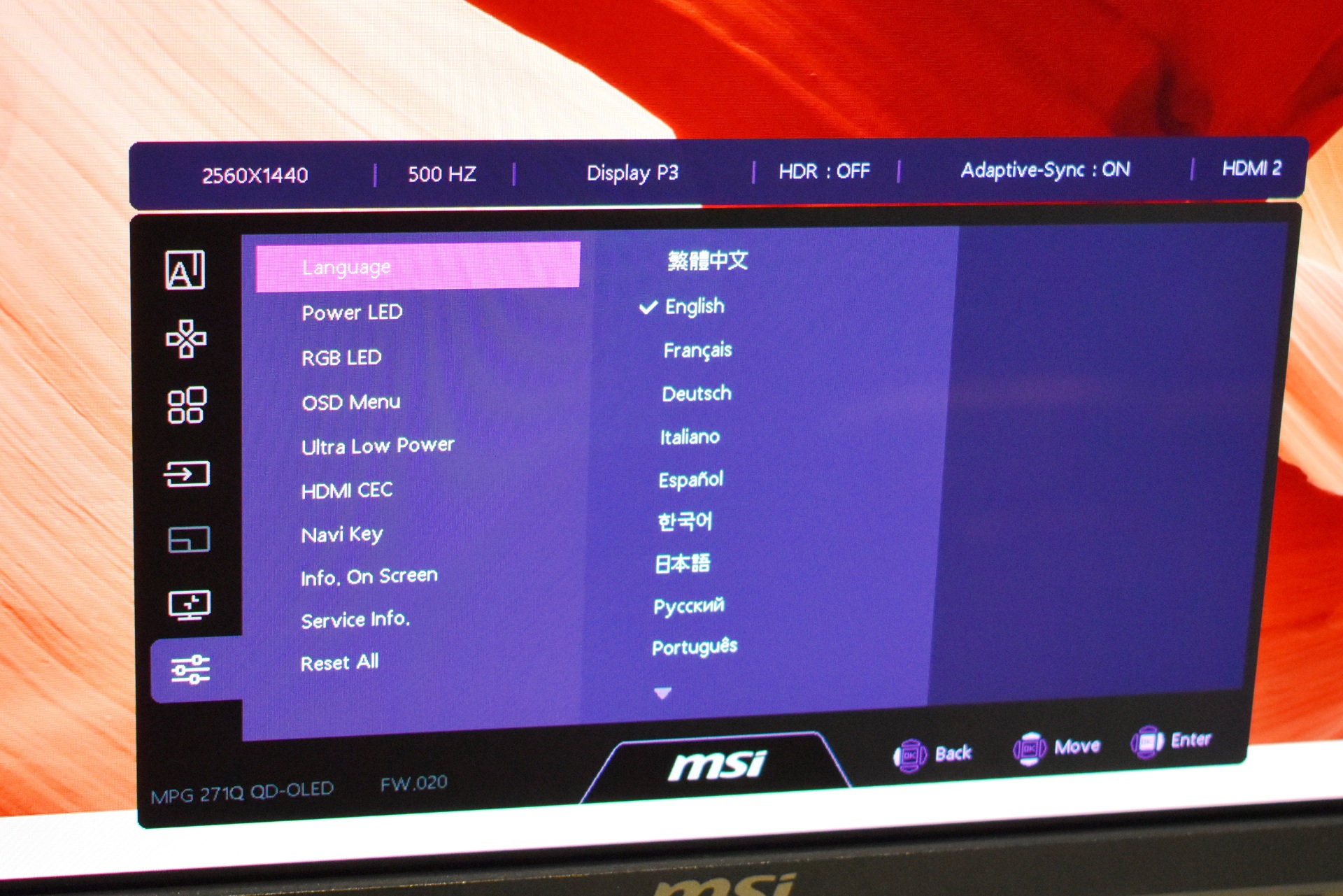
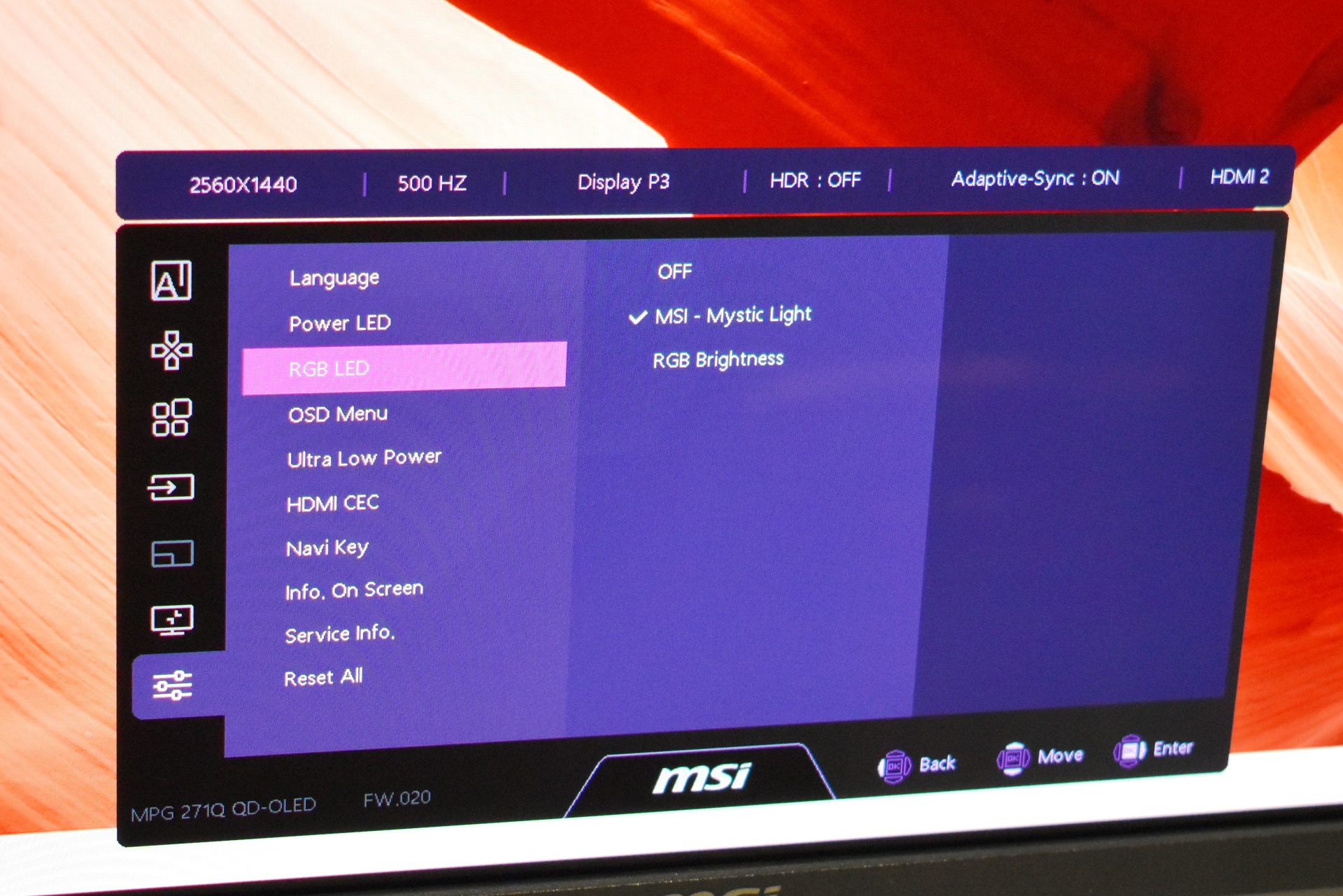
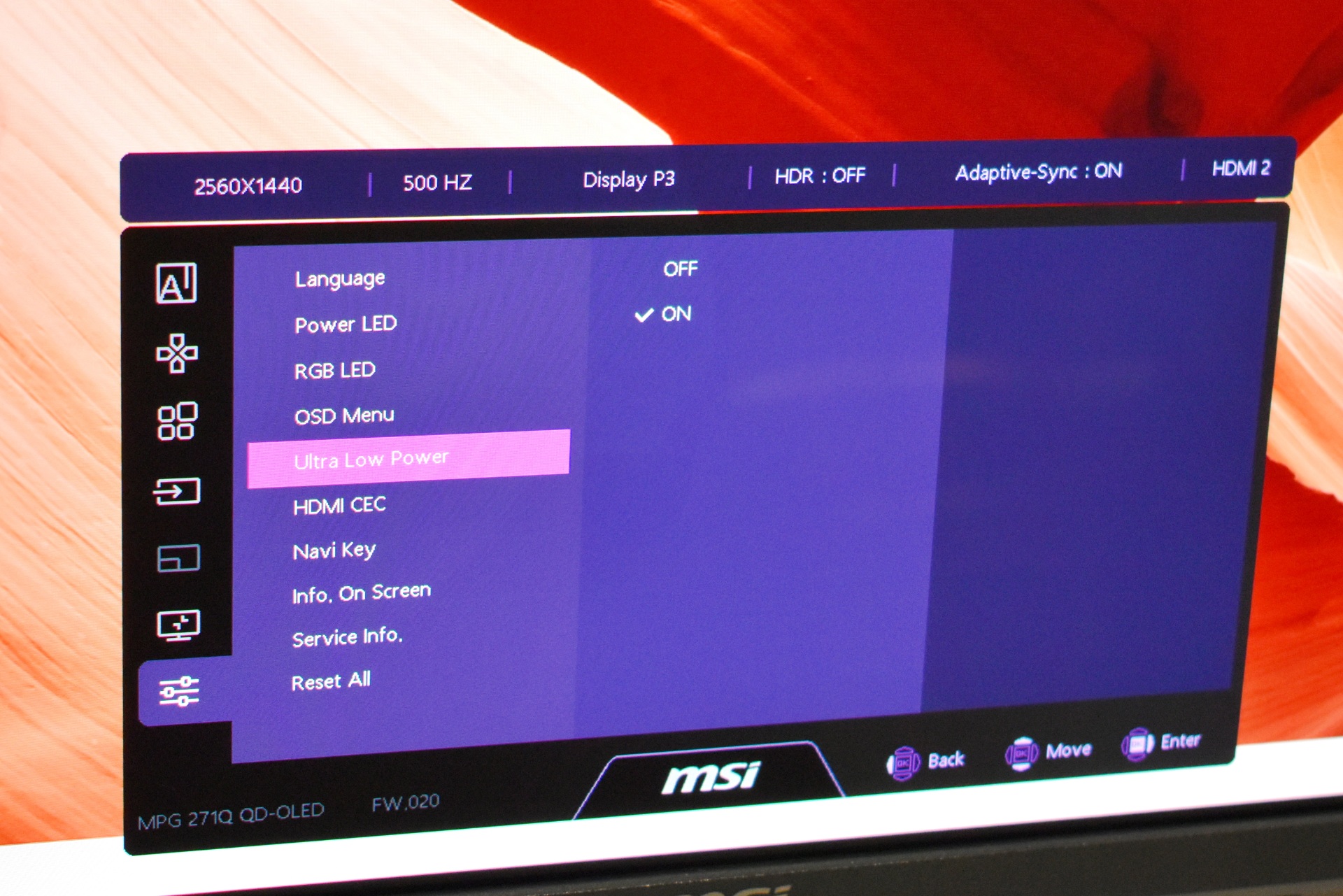
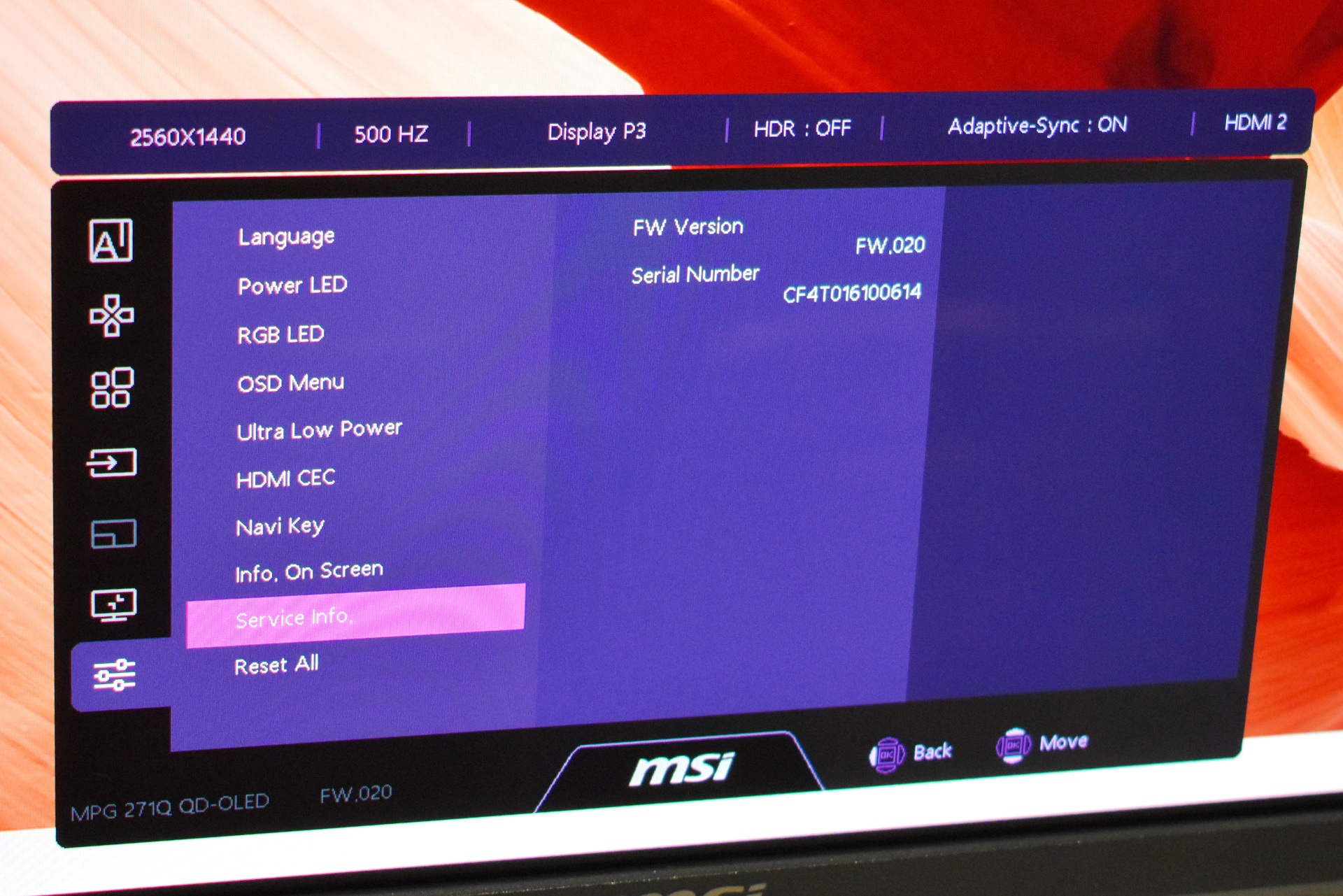
This section contains all general monitor settings. The user can change the OSD language, toggle the power LED, adjust RGB LED behavior, configure OSD rotation and transparency, enable ultra‑low‑power mode, toggle HDMI‑CEC, customize Navi Key shortcuts, show on‑screen info, view service details like firmware and serial number, and reset all settings to default.
MSI GAMING INTELLIGENCE
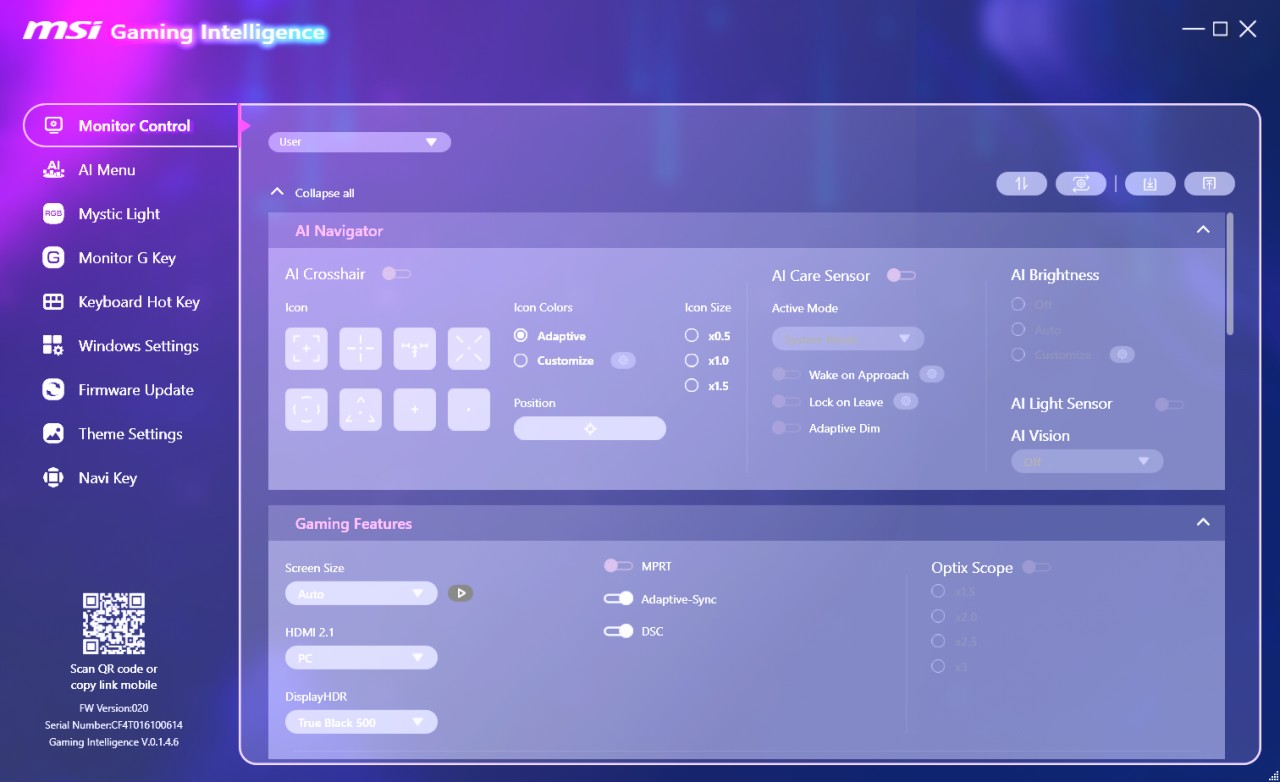
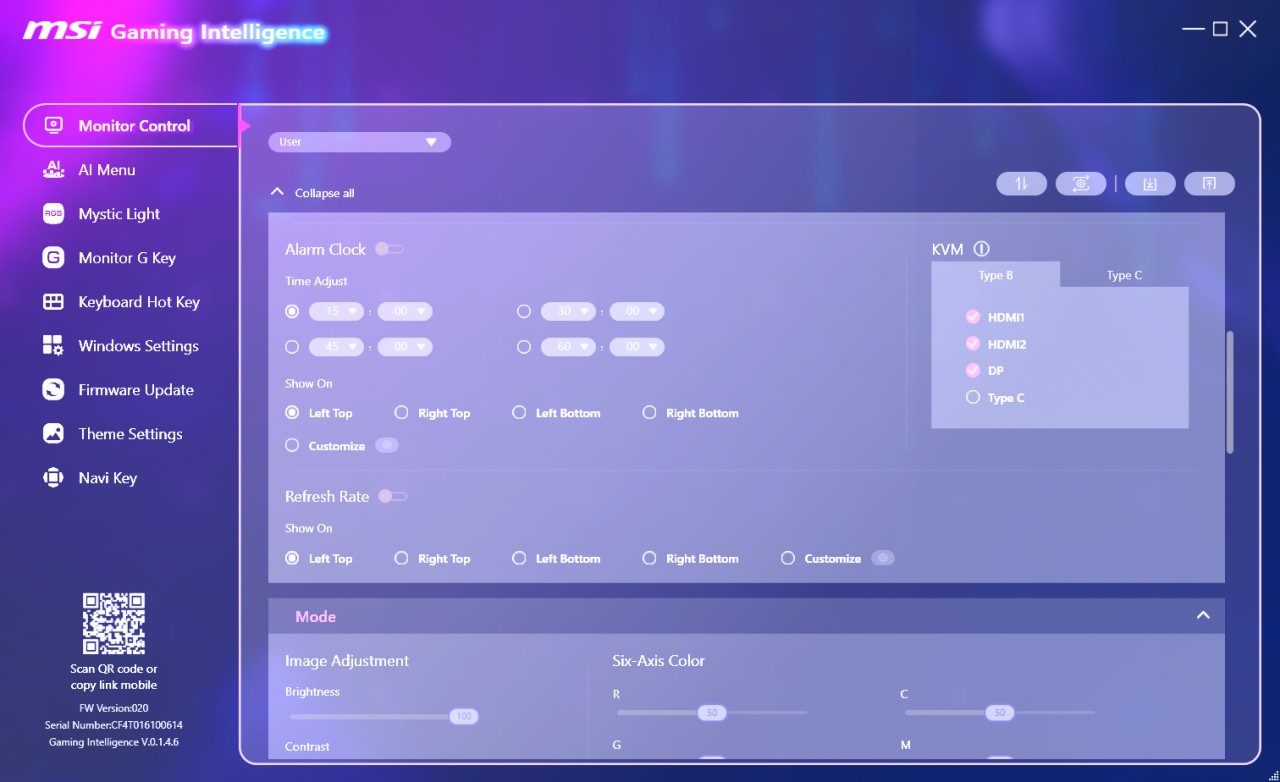
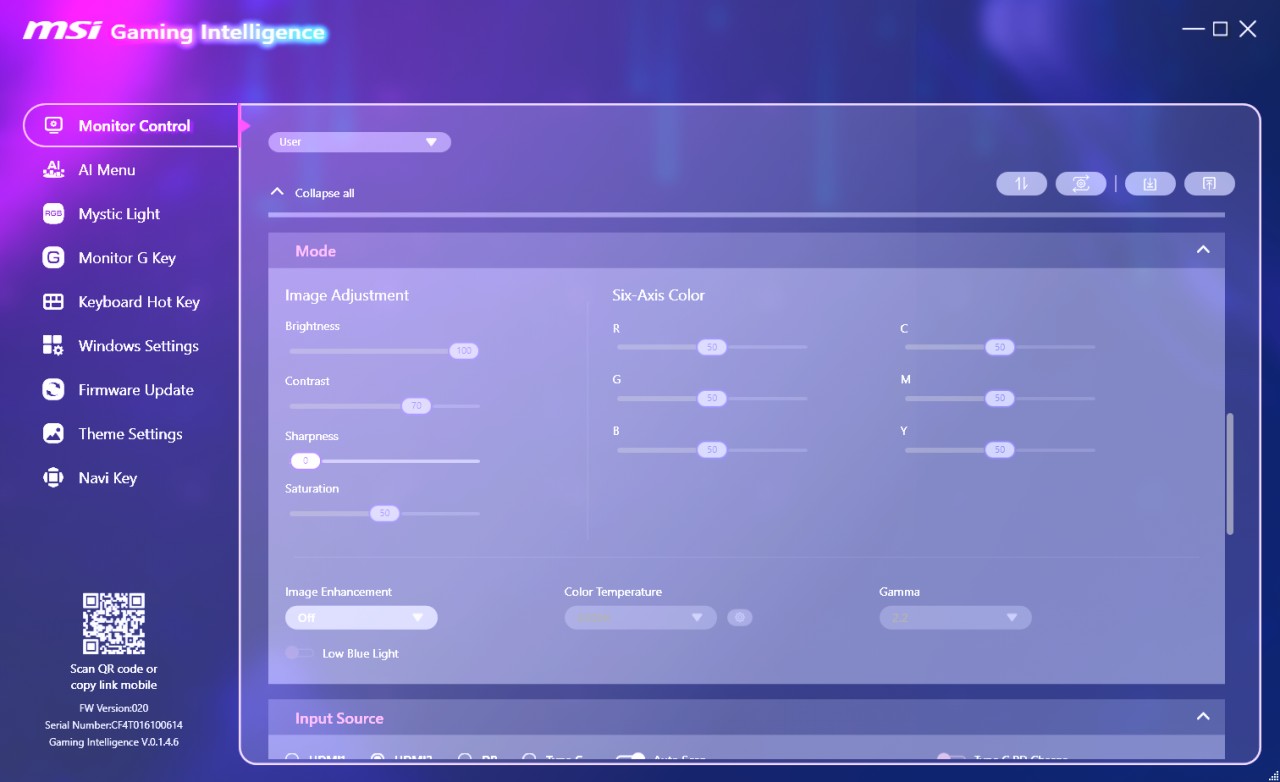
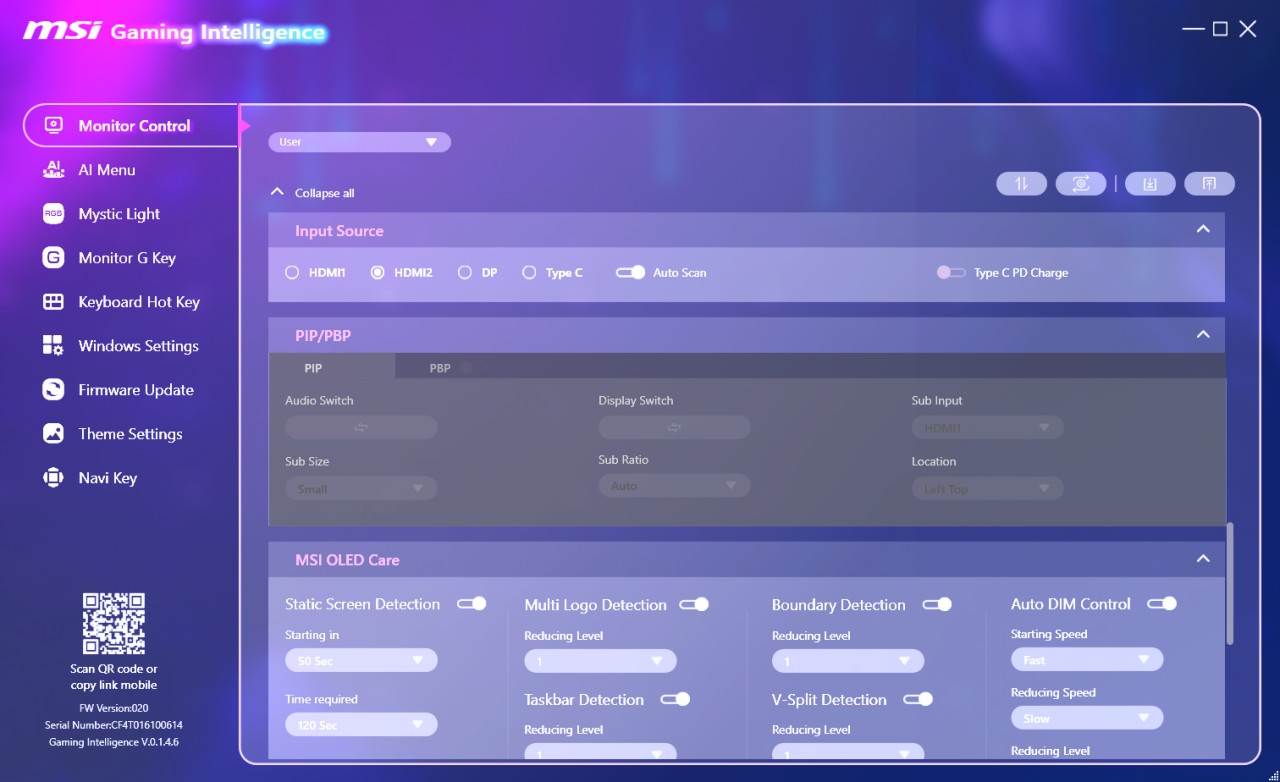
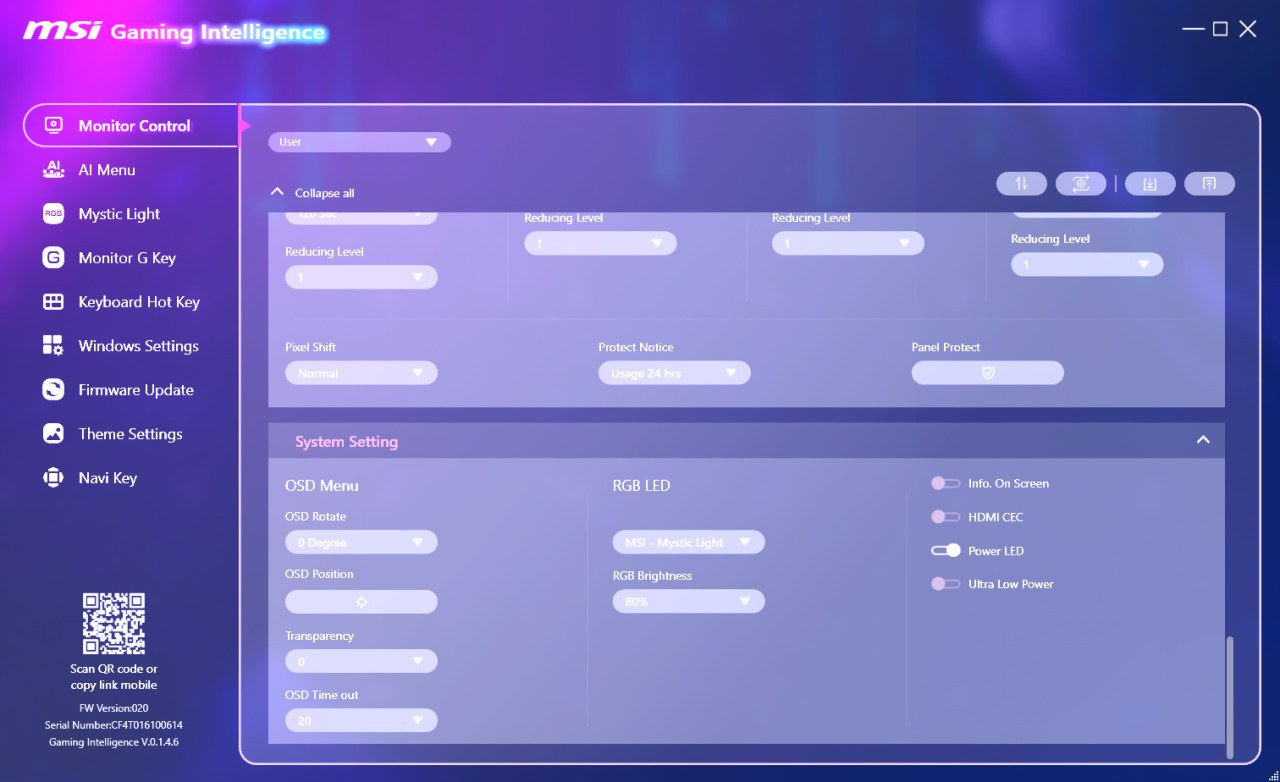
The MSI Gaming Intelligence software offers everything the OSD menus do and more. From the full Monitor Control section, the user can adjust all core display and system behaviors of the monitor. This includes setting an on‑screen alarm timer and choosing its position, enabling a refresh‑rate overlay, switching between picture modes, and fine‑tuning image parameters such as brightness, contrast, sharpness, saturation, and six‑axis color. The user can also configure KVM input routing, select the active video input, and manage PIP/PBP layouts including sub‑window size, ratio, audio source, and location. Additional system controls include pixel‑shift and panel‑protection tools, OSD rotation and positioning, transparency, timeout, RGB LED brightness, and toggles for HDMI‑CEC, power LED, ultra‑low‑power mode, and on‑screen information. The OLED Care panel provides burn‑in protection features like static‑screen detection, logo reduction, boundary detection, taskbar dimming, V‑split detection, and auto‑dim behavior.
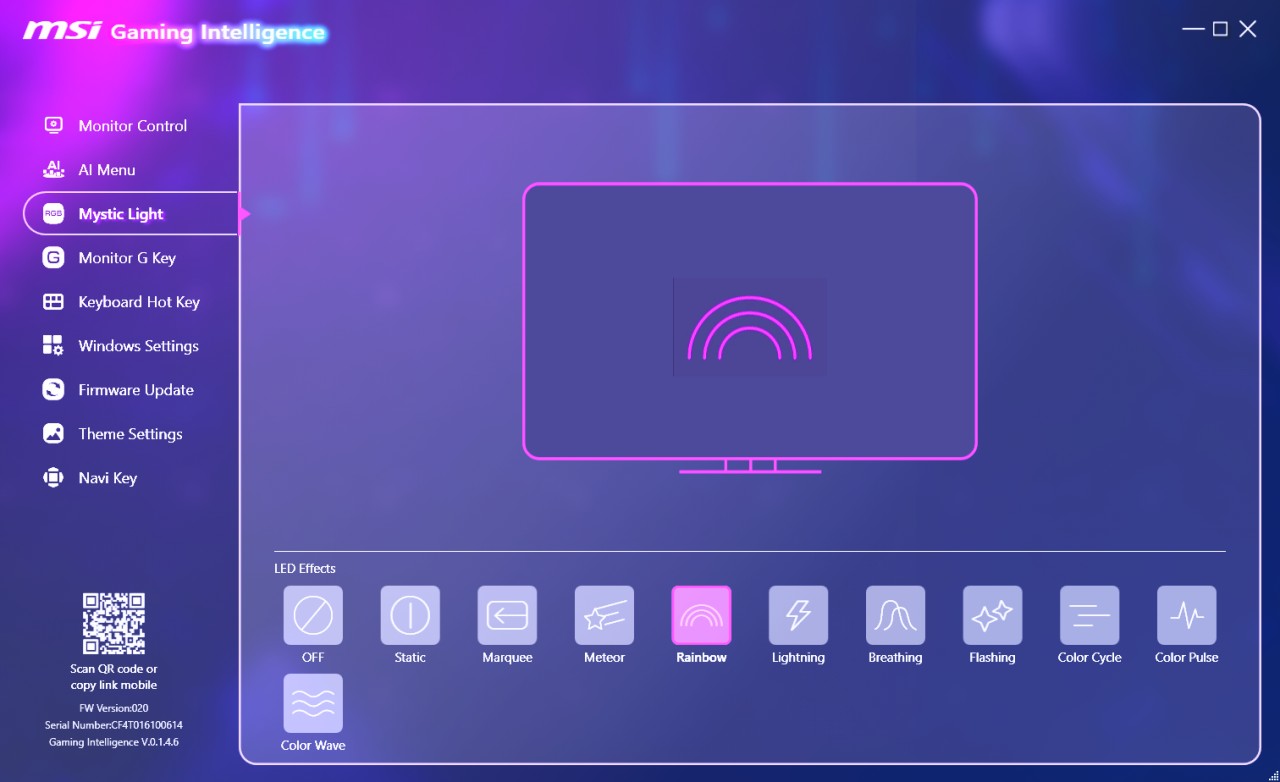
From this tab, the user can control the monitor’s RGB lighting effects. They can choose between static, breathing, rainbow, meteor, color‑cycle, flashing, and other animations, or disable lighting entirely.


One thing I feel I need to point out is that to change effects for the rear RGB LED bar I had to choose them from the app and then remove the USB cable from my computer (probably a bug).
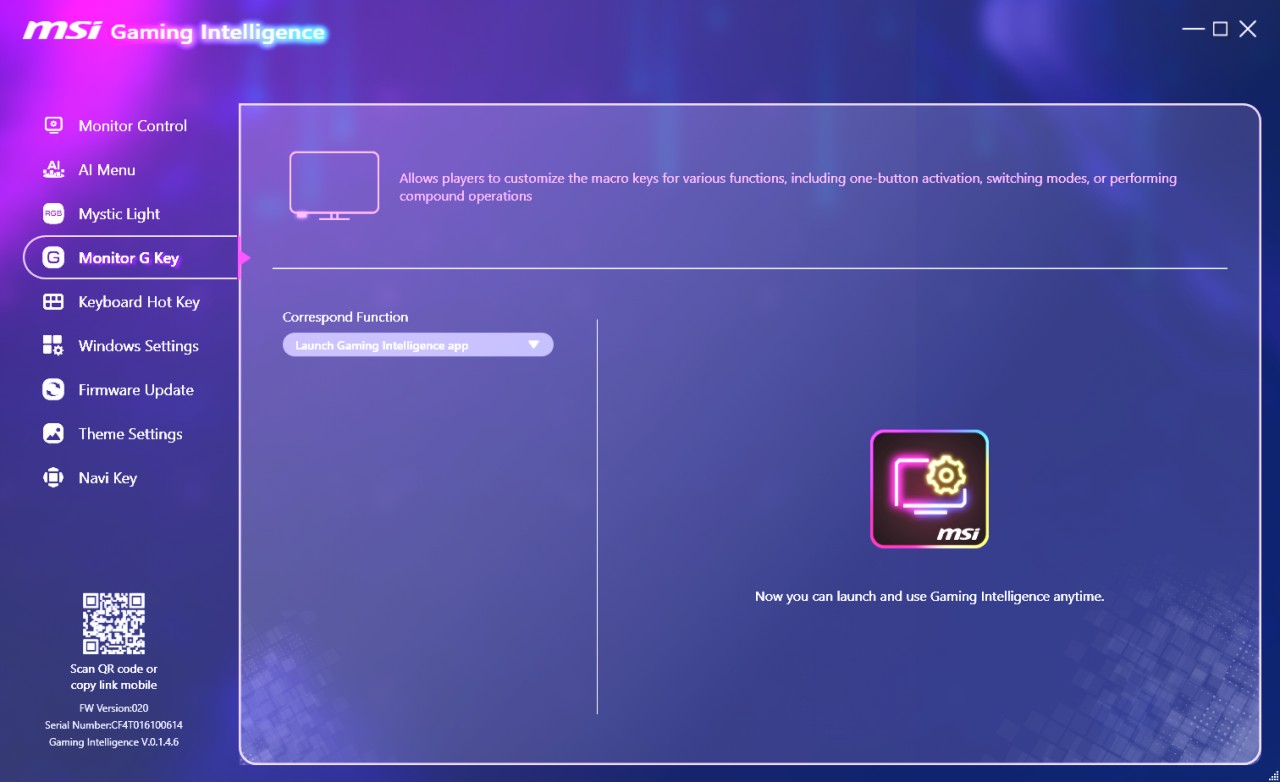
This section lets the user assign a specific action to the monitor’s physical G‑key. They can bind it to launch the Gaming Intelligence app, switch display modes, activate features, or trigger simple macros, giving quick access without opening menus.
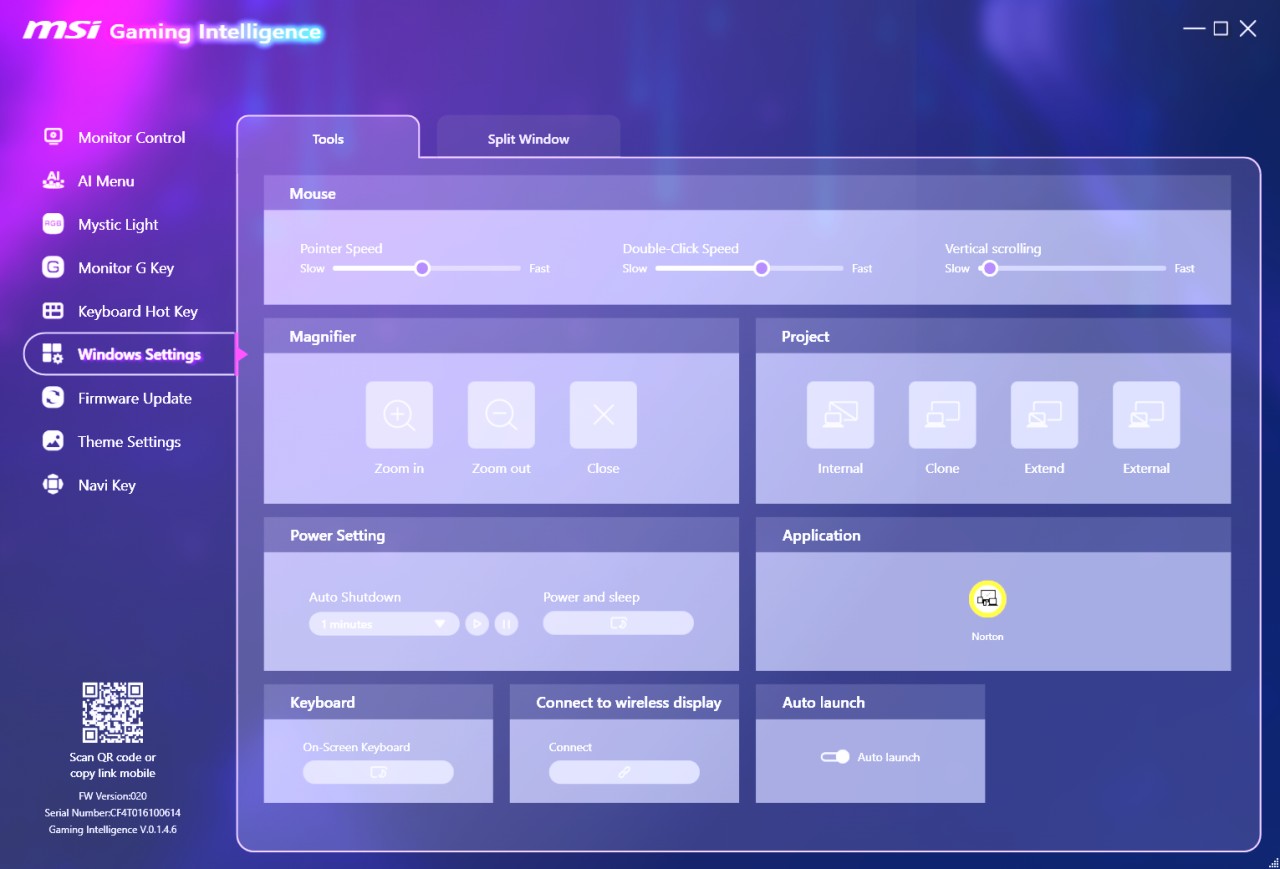
Here the user can access system‑level tools such as mouse speed adjustments, magnifier controls, display projection modes, power and sleep settings, app shortcuts, the on‑screen keyboard, wireless display connection, and an auto‑launch toggle. It also includes window‑splitting layouts for productivity.
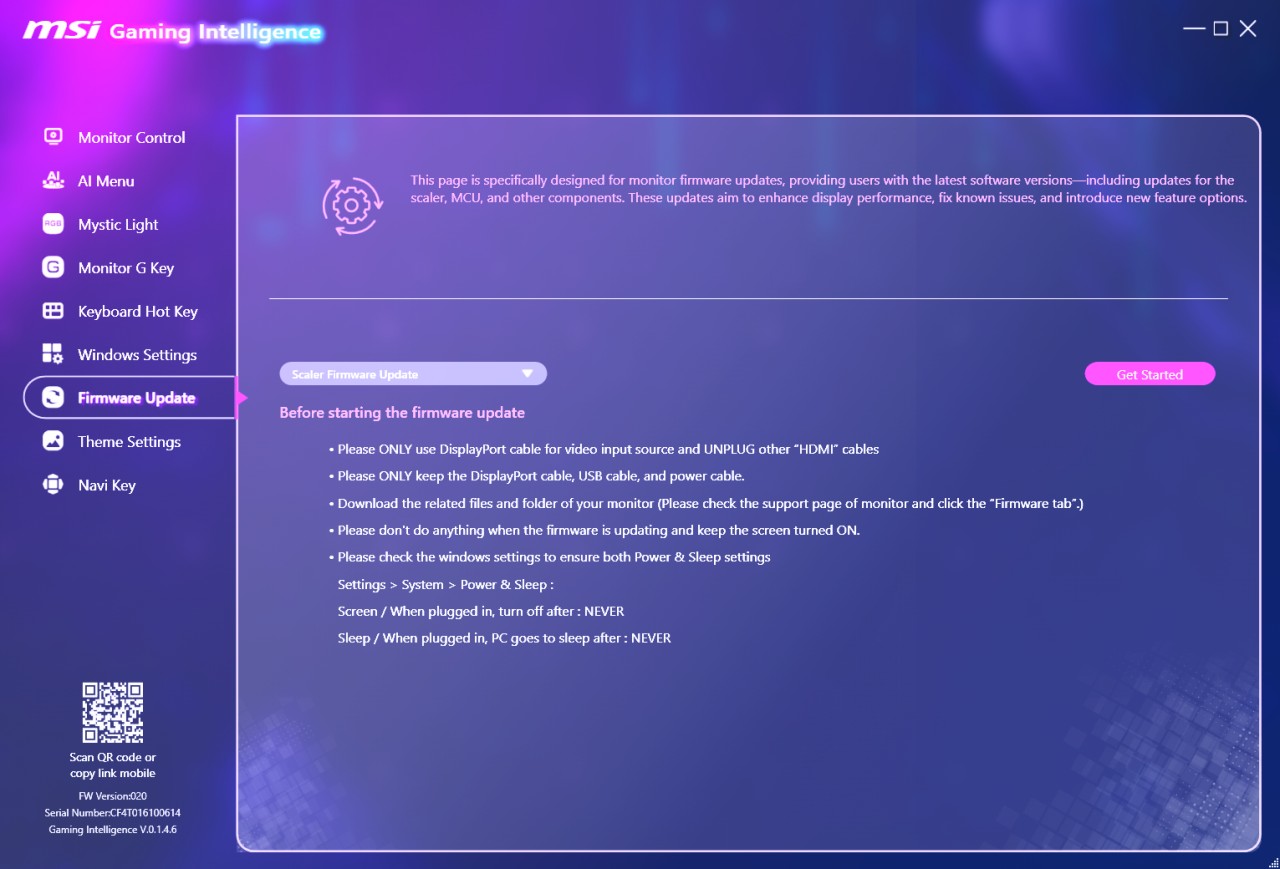
This tab provides the user with the ability to update the monitor’s firmware. It includes instructions for proper cable setup, power‑sleep configuration, and update safety. The firmware update covers scaler, MCU, and other internal components to improve stability and add new features.
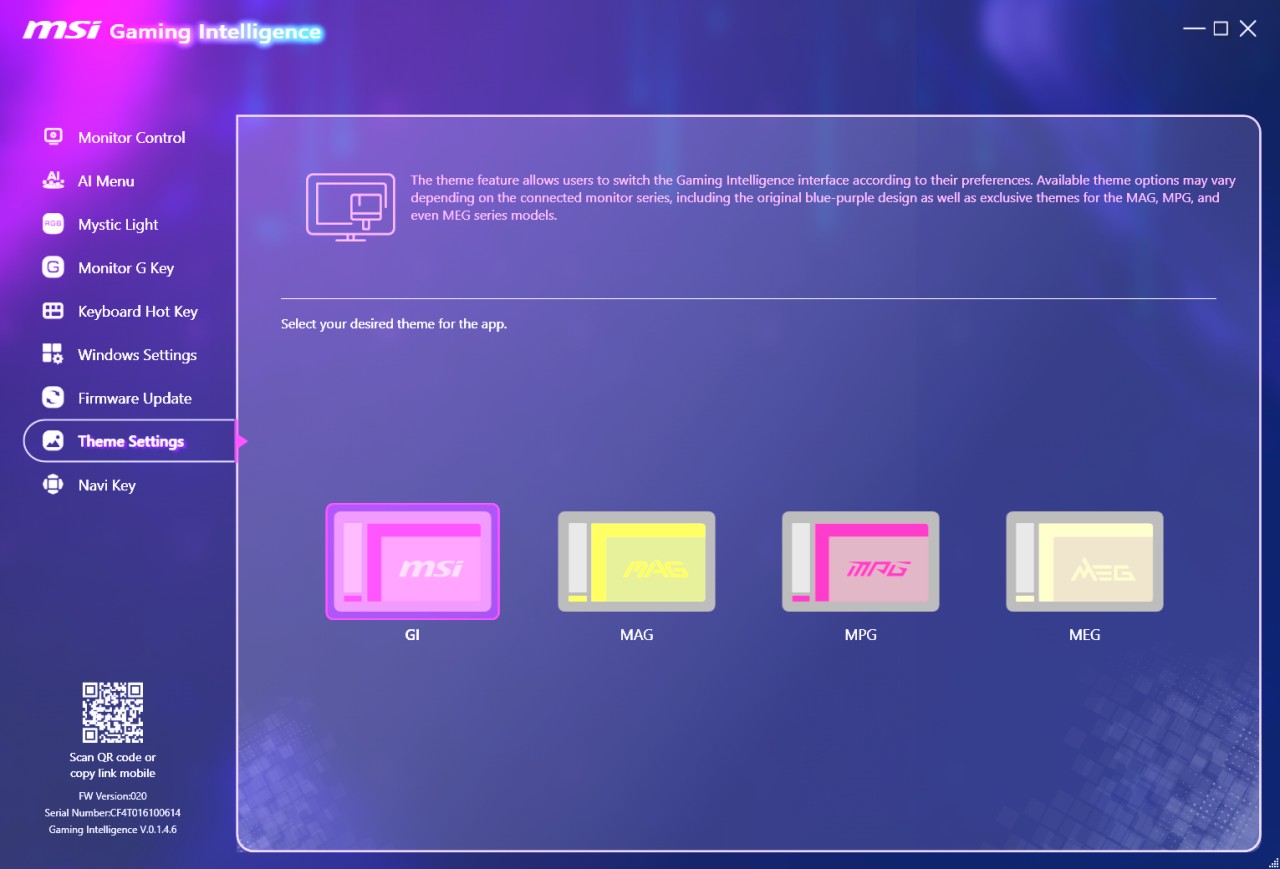
From this tab, the user can change the visual theme of the Gaming Intelligence interface. They can switch between GI, MAG, MPG, and MEG themes depending on preference or monitor series, customizing the software’s appearance.
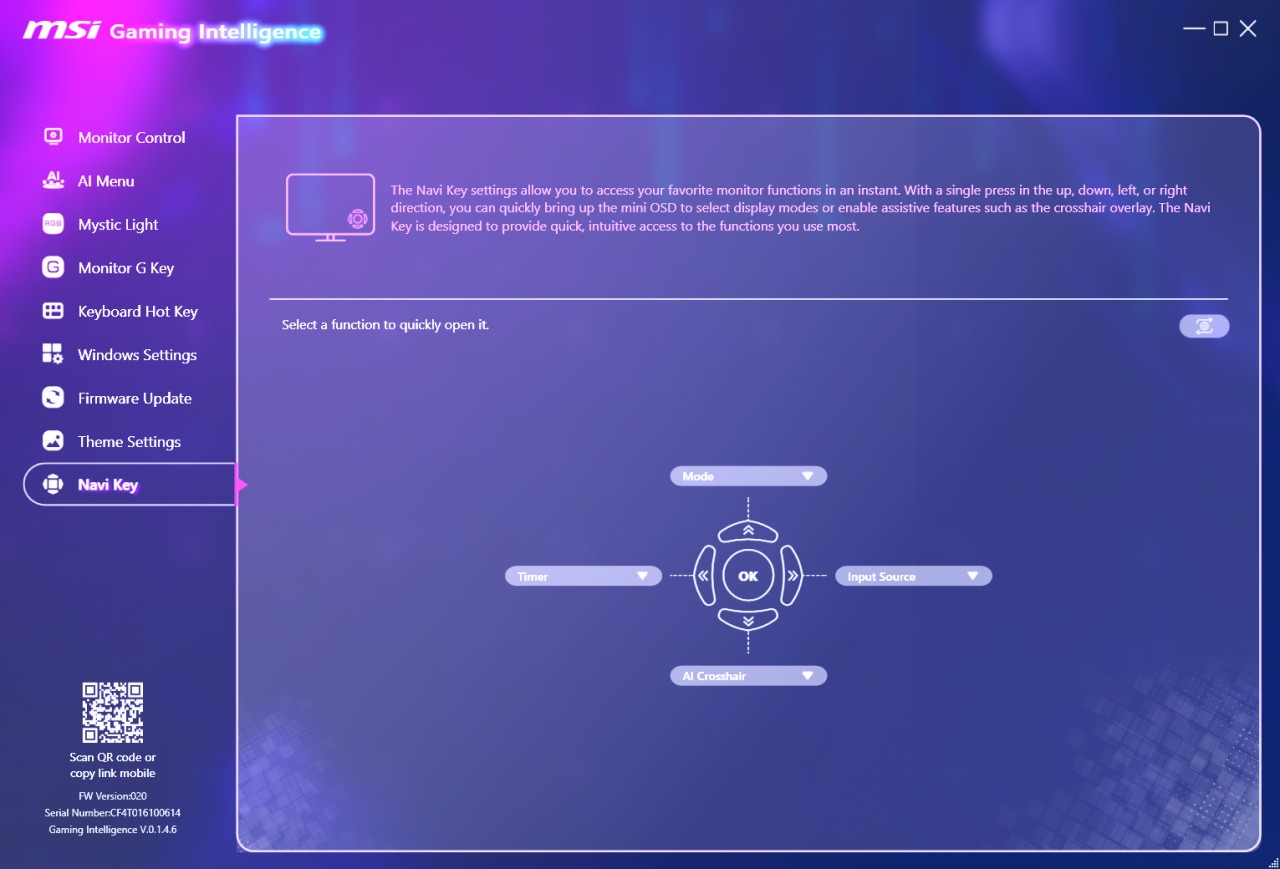
This section allows the user to assign quick‑access functions to the monitor’s joystick directions. Up, down, left, and right can be mapped to features like Mode, Timer, Input Source, or AI Crosshair, enabling fast navigation through the mini‑OSD.
VIEWING ANGLES / PICTURE QUALITY





Image quality is surprisingly good, picture is sharp with vibrant colors and excellent blacks. The anti-reflecting coating does produce some grain with very crisp pictures but it’s noticeable only when you are very close to the screen.
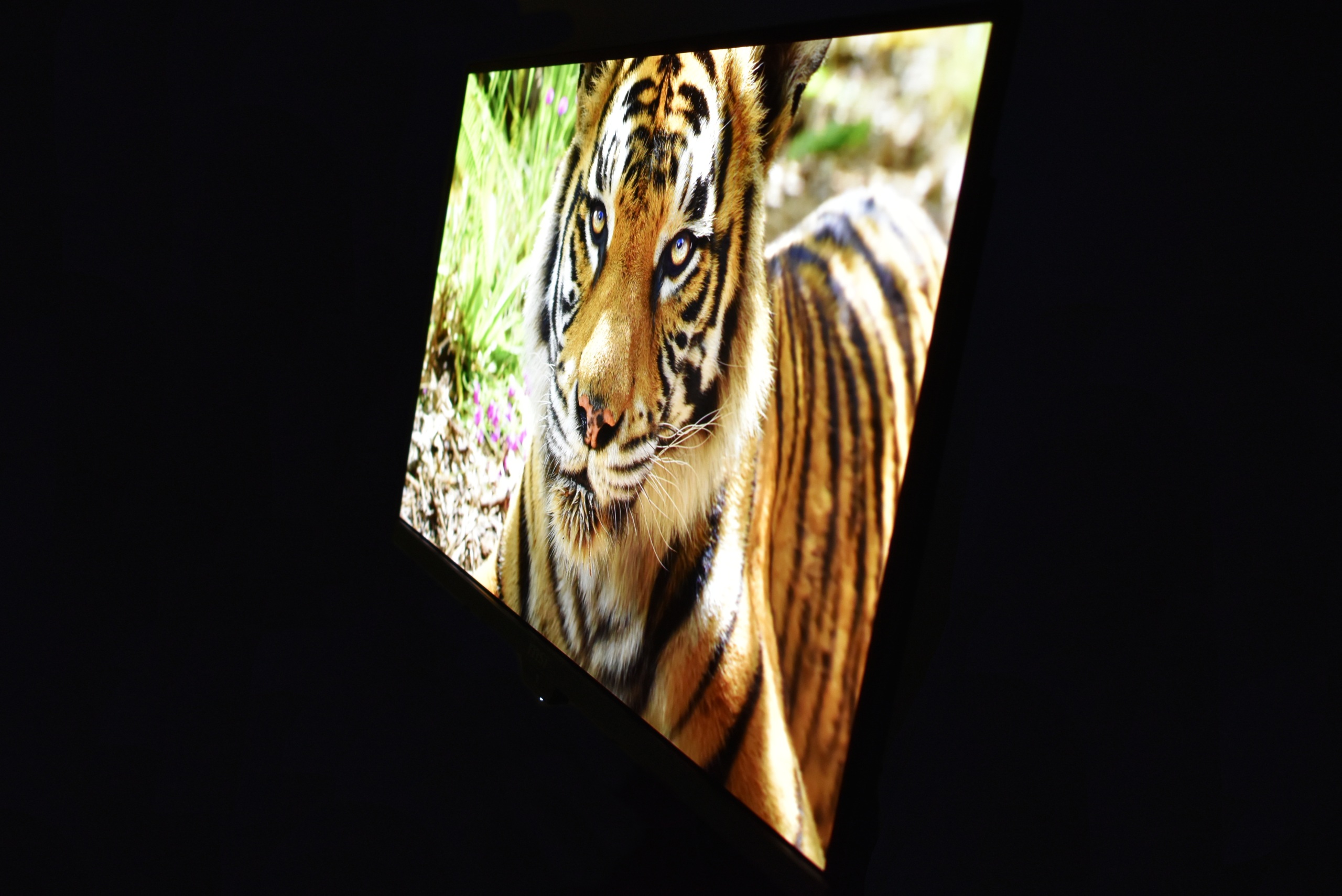
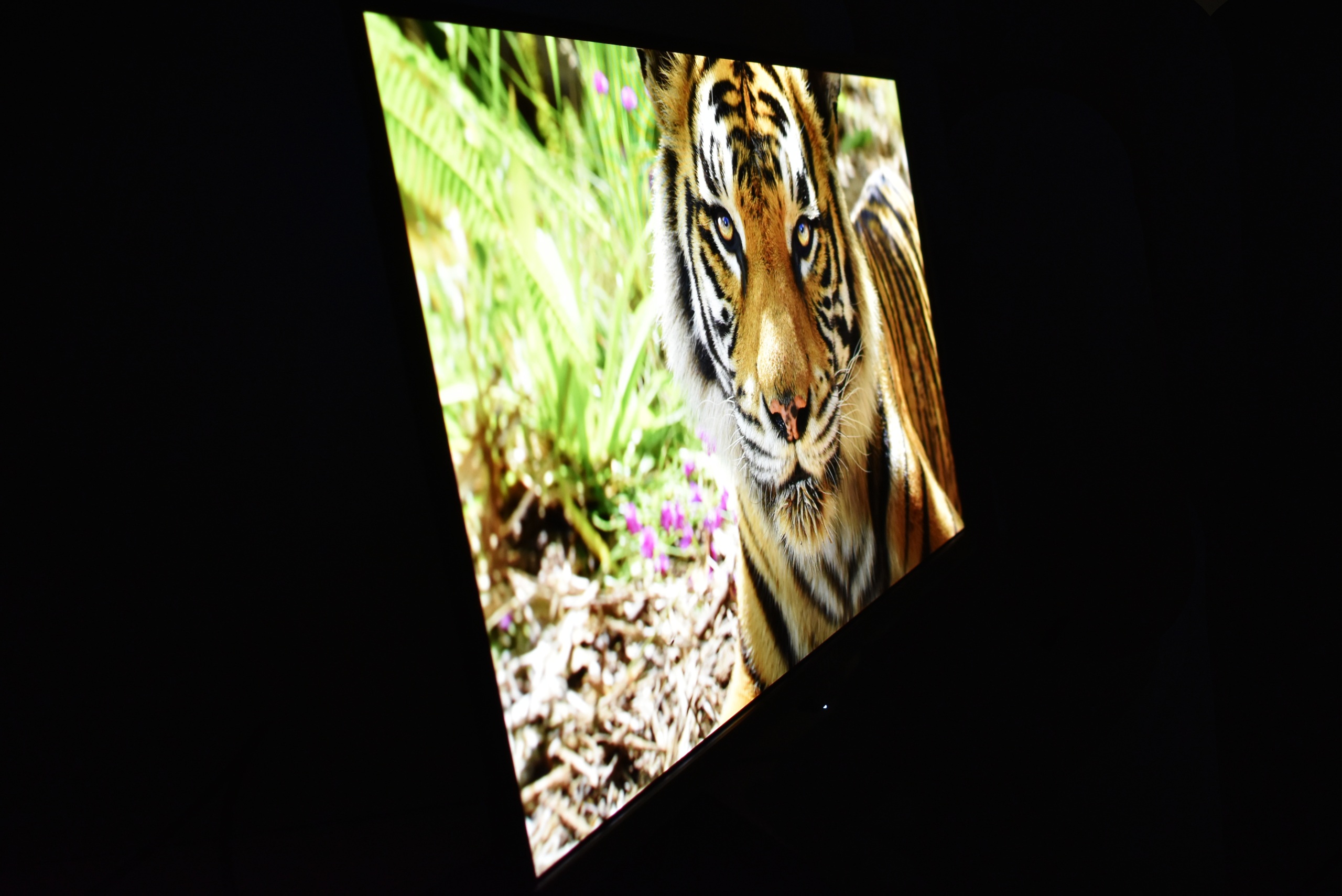
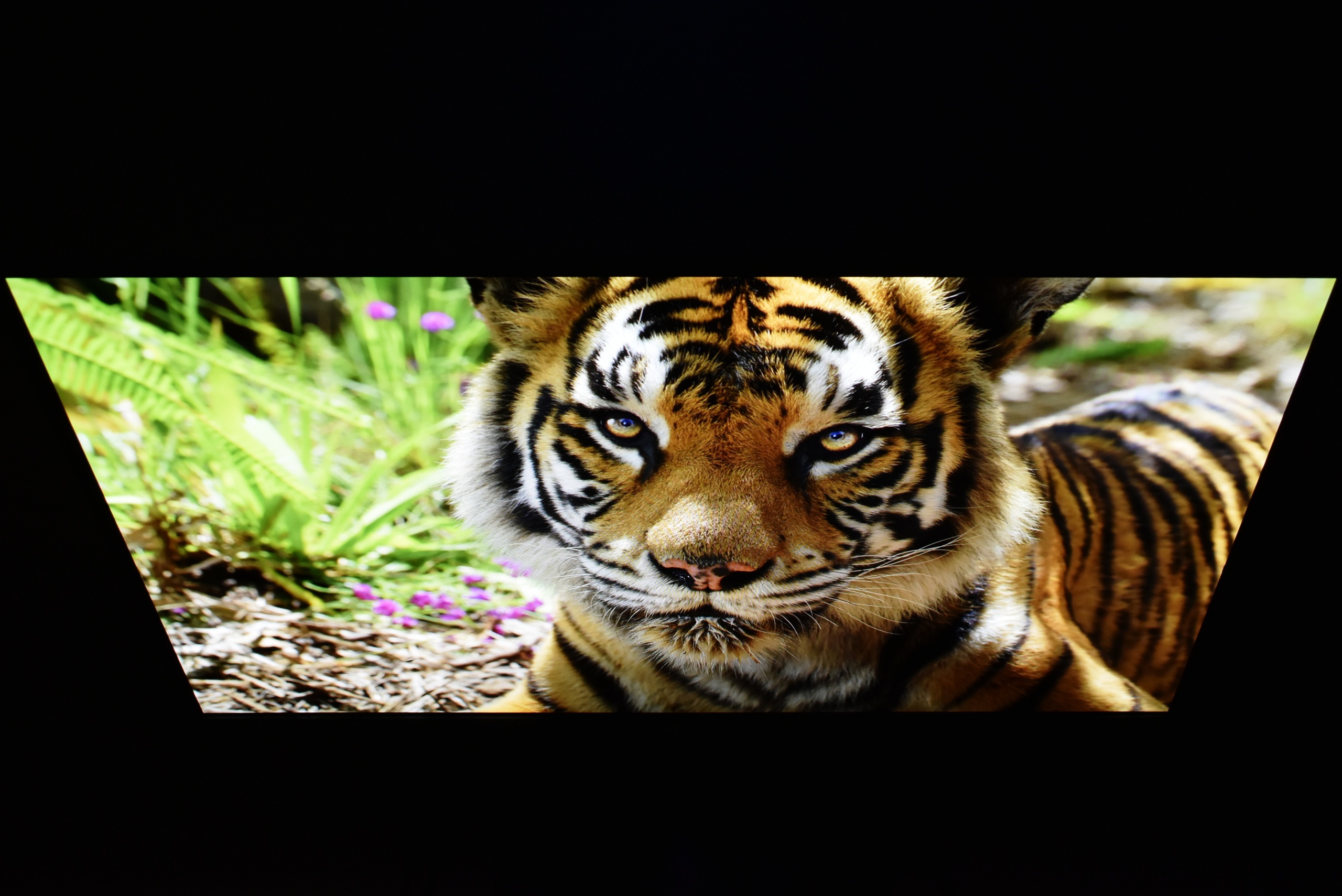
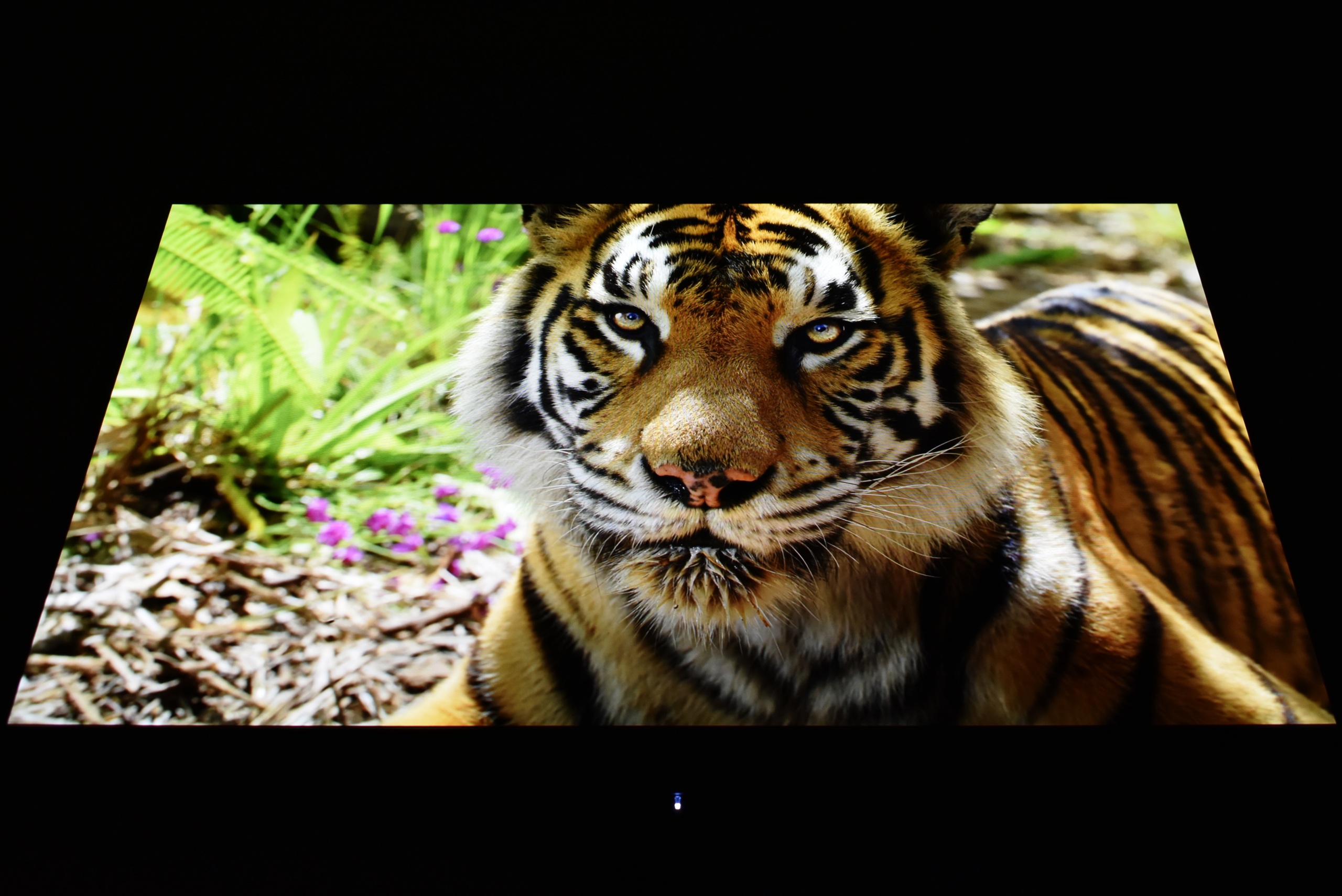
Viewing angles are not an issue with QD-OLED screens and of course the same applies for the MPG 271QR X50 model by MSI.
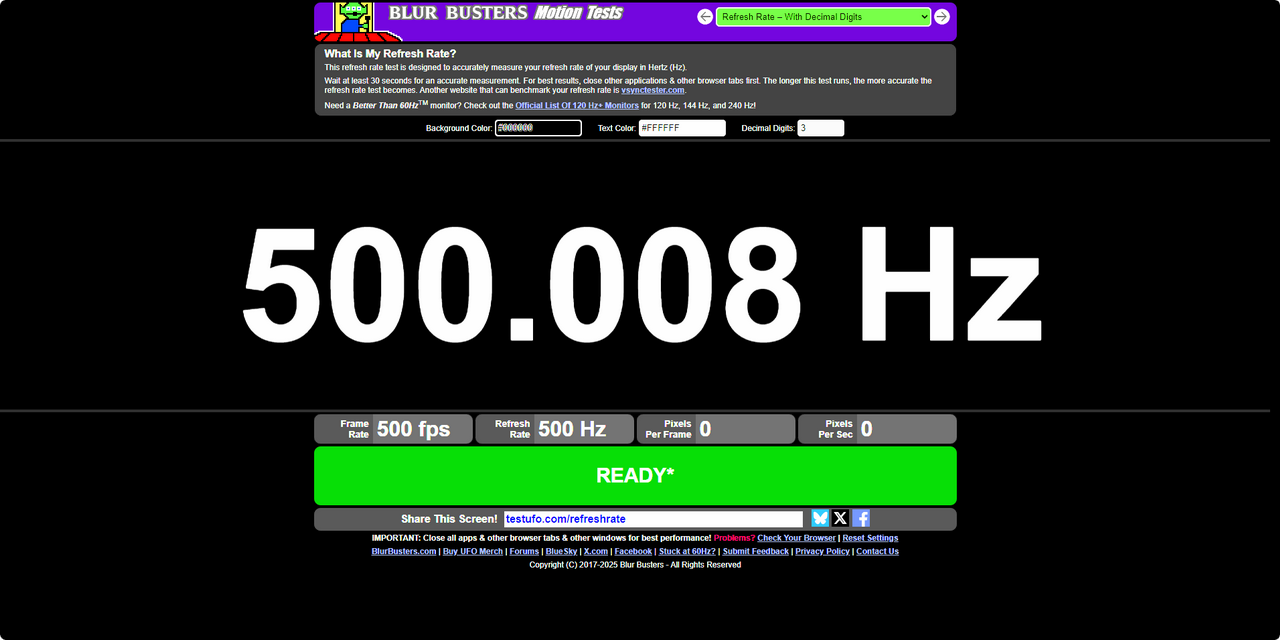
Since this is the 1st 500Hz monitor to arrive in the lab I used the testufo website to see what their tester would report (and it all checks out).
TEST RESULTS
DATACOLOR SPYDER PRO MEASUREMENTS
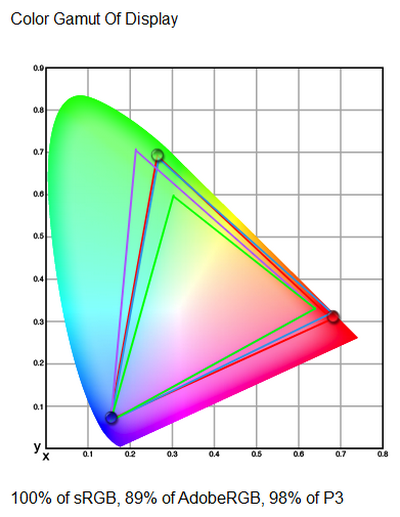
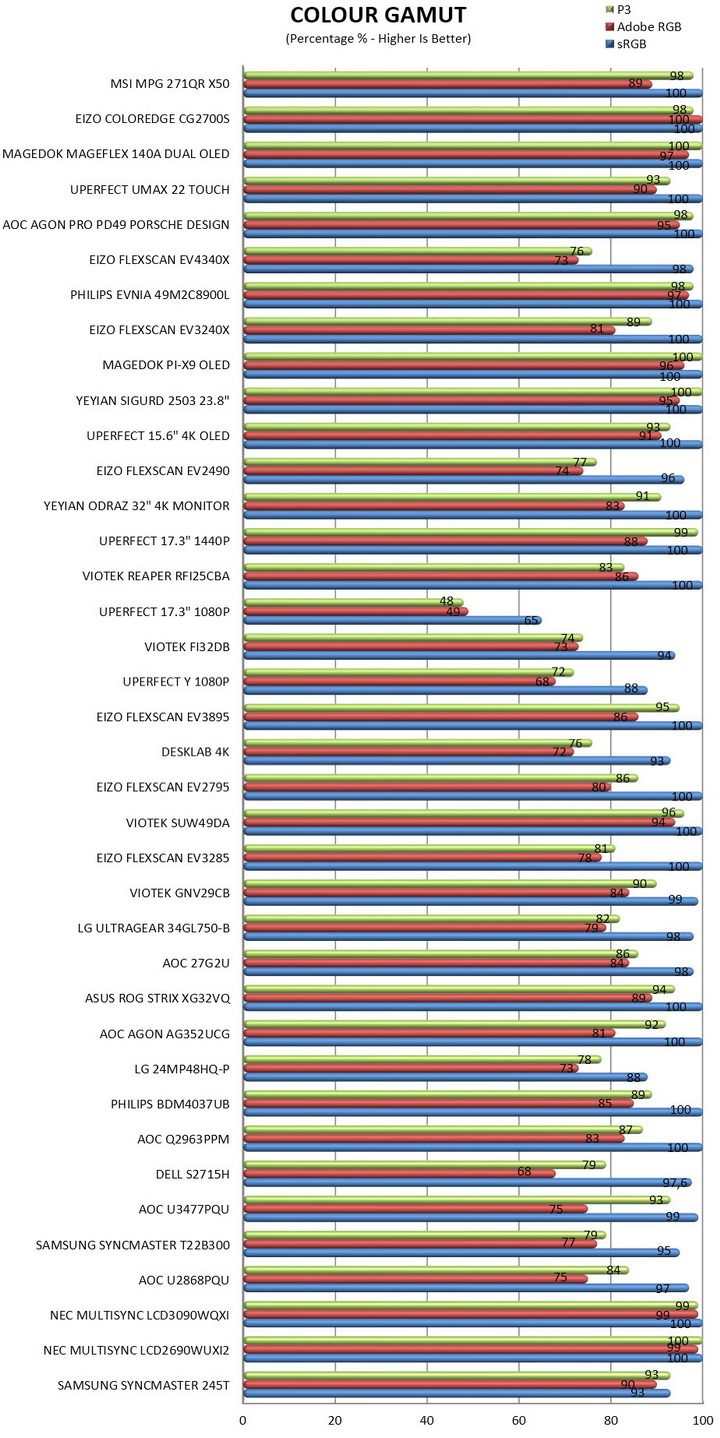
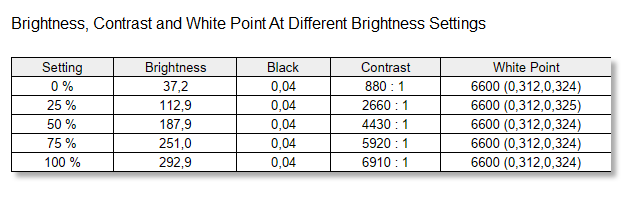
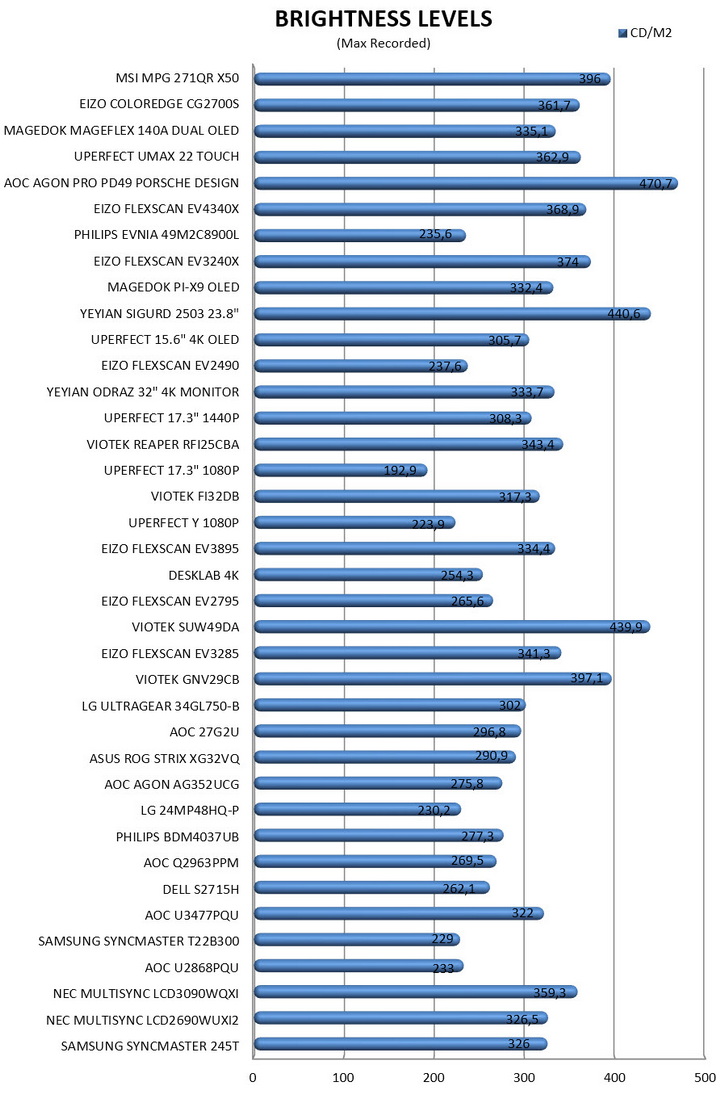
By using the Spyder Pro (2024) Colorimeter by Datacolor I measure both the color gamut (SRGB, AdobeRGB & P3) and the brightness levels of the monitor at hand.

Here you can see results for Color and Luminance Screen Uniformity (instead of just listing results at 100% brightness I’m listing all of them - 50/67/83/100%).
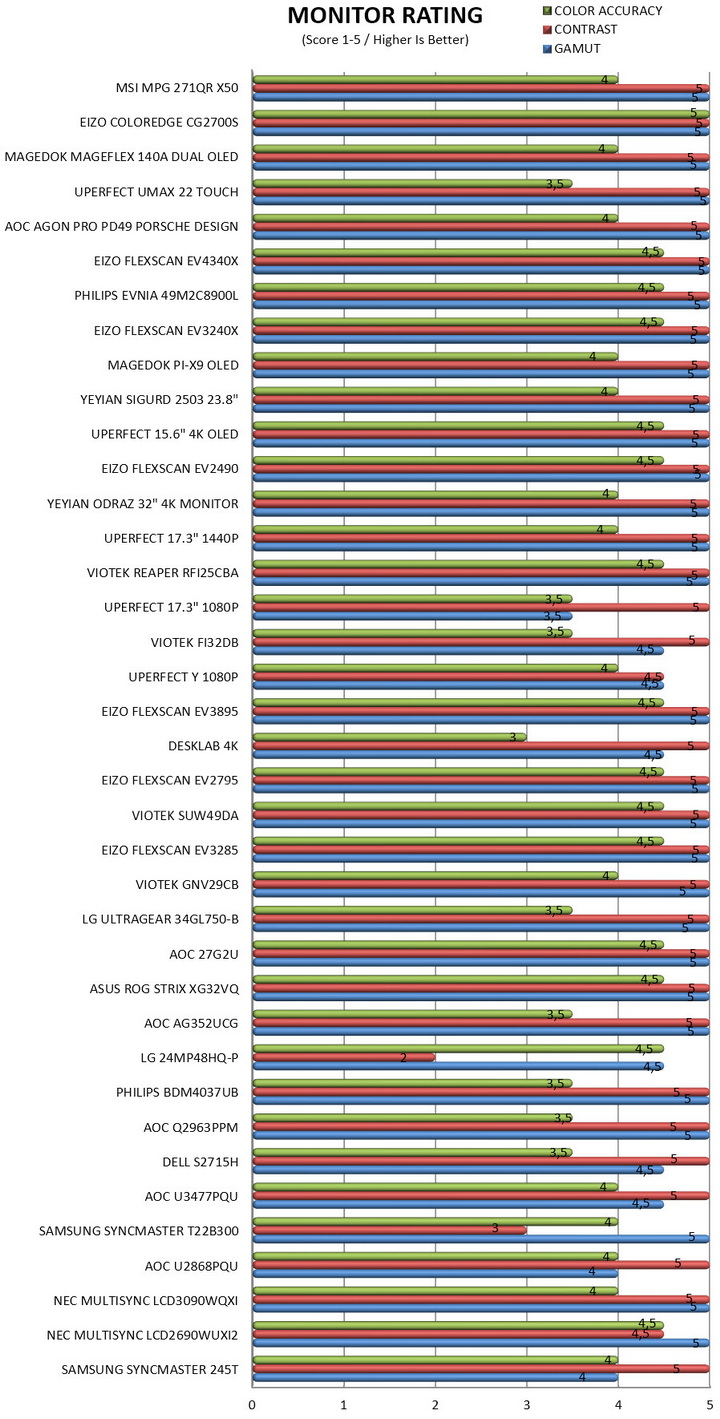
Datacolor rates monitors based on their overall results, so it was decided to include this chart as well.
POWER CONSUMPTION
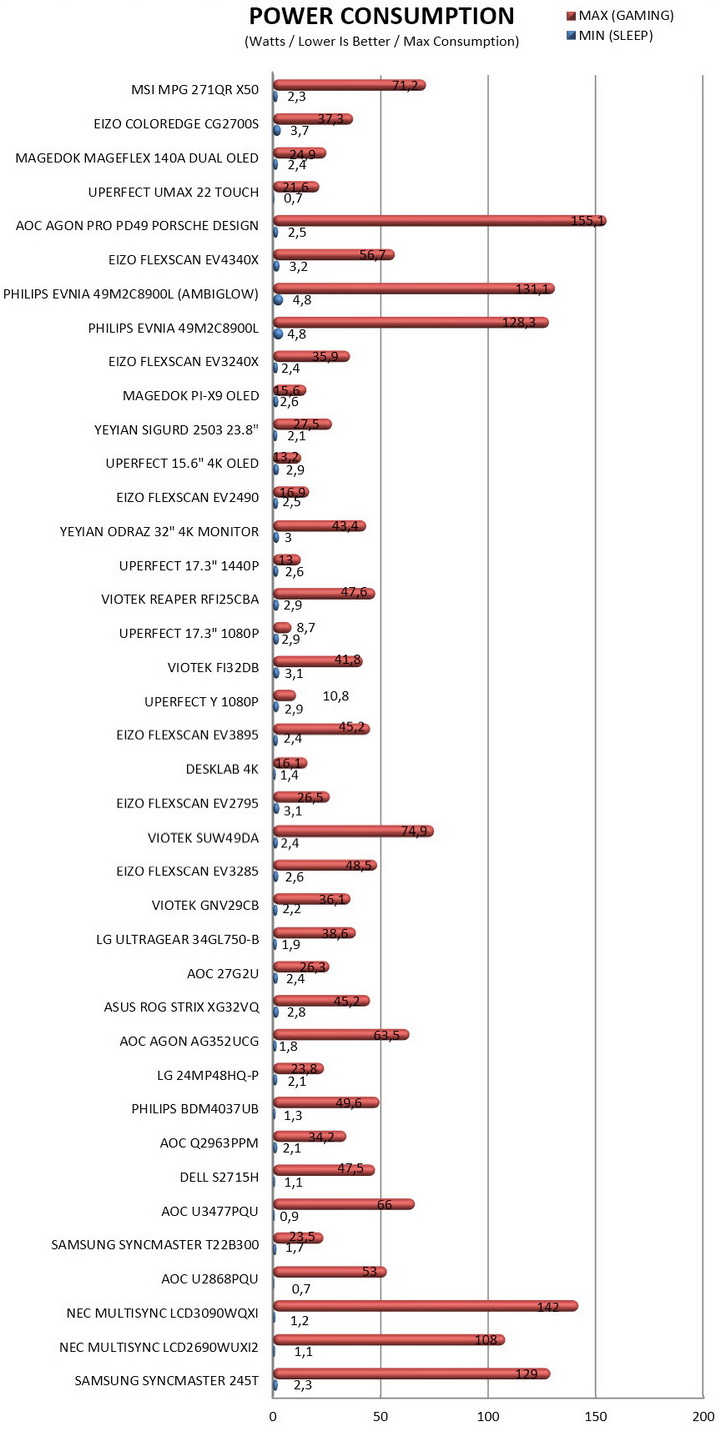
Power consumption may not be what most people look for when out to get a brand-new monitor but at the end of the day it's still an important factor, so I do hope this is of interest to some of you.
CONCLUSION
Despite its compact 27‑inch footprint, the MPG 271QR QD‑OLED X50 by MSI lands as one of the most complete gaming displays available today, combining excellent gamut accuracy, clean grayscale handling, and the inherently rich image quality of Samsung’s third‑generation QD‑OLED panel. Brightness performance lands at roughly 396 nits in real‑world full‑screen measurements, which is among the best results for this panel class (advertised 1000‑nit‑plus HDR peaks apply only to extremely small highlights - around a 1% window - where the panel can momentarily concentrate its luminance without triggering ABL or thermal limits). Motion performance is in a league of its own thanks to the 500Hz refresh rate and near‑instantaneous pixel transitions, and the extensive suite of panel‑safety mechanisms, including MSI’s OLED Care 3.0 and the graphene‑enhanced cooling system, adds welcome peace of mind for long‑term use. Practical touches like the fully adjustable stand, integrated KVM switch, and a USB‑C port capable of delivering nearly 99W of power make it a genuinely versatile desktop monitor rather than a single‑purpose gaming display. Its shortcomings are relatively minor, there are no built‑in speakers (not a serious issue but they could come in handy), power consumption is higher than expected for a 27‑inch screen, and the aggressive anti‑reflective coating can introduce a subtle graininess on bright backgrounds. Even so, the overall package stands out, exceptional motion clarity, strong HDR impact within the limits of QD‑OLED physics, accurate color, and thoughtful ergonomics combine to make the MPG 271QR QD‑OLED X50 one of the most polished executions of a modern high‑refresh QD‑OLED monitor.
Right now, and after a recent price slash by MSI the MPG 271QR QD-OLED X50 Gaming Monitor retails for USD699.99 inside the USA (Amazon.com) and for 884.68Euros (Amazon.de) so it’s priced more or less what one would expect. At the end of the day given the MPG 271QR X50 QD‑OLED’s target audience, the real value of its 500Hz mode sits squarely in competitive esports. Even with the top GPUs currently available only competitive titles like CS2, Valorant, and Overwatch 2 can sustain 300–400 FPS, letting the panel’s extreme scanout speed cut latency, scanout time, and sample‑and‑hold blur beyond what 240-360Hz can deliver. The gain however isn’t about hitting 500 FPS, it’s about tighter input granularity and more stable frametime behavior in high‑speed aim scenarios where milliseconds actually matter. That’s where the MPG 271QR QD-OLED X50 extreme refresh headroom actually translates into measurable competitive value and that along with its image quality and features are more than enough for the Golden Award.

PROS
- Build Quality
- 2560x1440p WQHD Resolution
- 500Hz Refresh Rate
- QD OLED Panel (3rd Gen Samsung)
- Very Good Image Quality
- Features (GSYNC, FreeSync Premium Pro, True Black 500, EOTF Boost, AI Sensor, PIP, PBP)
- Rear RGB LED Bar
- 0.03ms GTG Response Time
- Stand Features (Tilt / Swivel / Pivot / Height Adjustment)
- Built In KVM / USB Hub
- Available Connectors (2xHDMI v2.1 / DisplayPort v2.1a / USBC PD 90W / 3.5mm Mini Jack)
- 3 Year Limited Warranty (Burn In Included)
CONS
- No Built In Speakers
- Power Consumption (For The Size)
- Price (For Some)