


USING THE GTR3
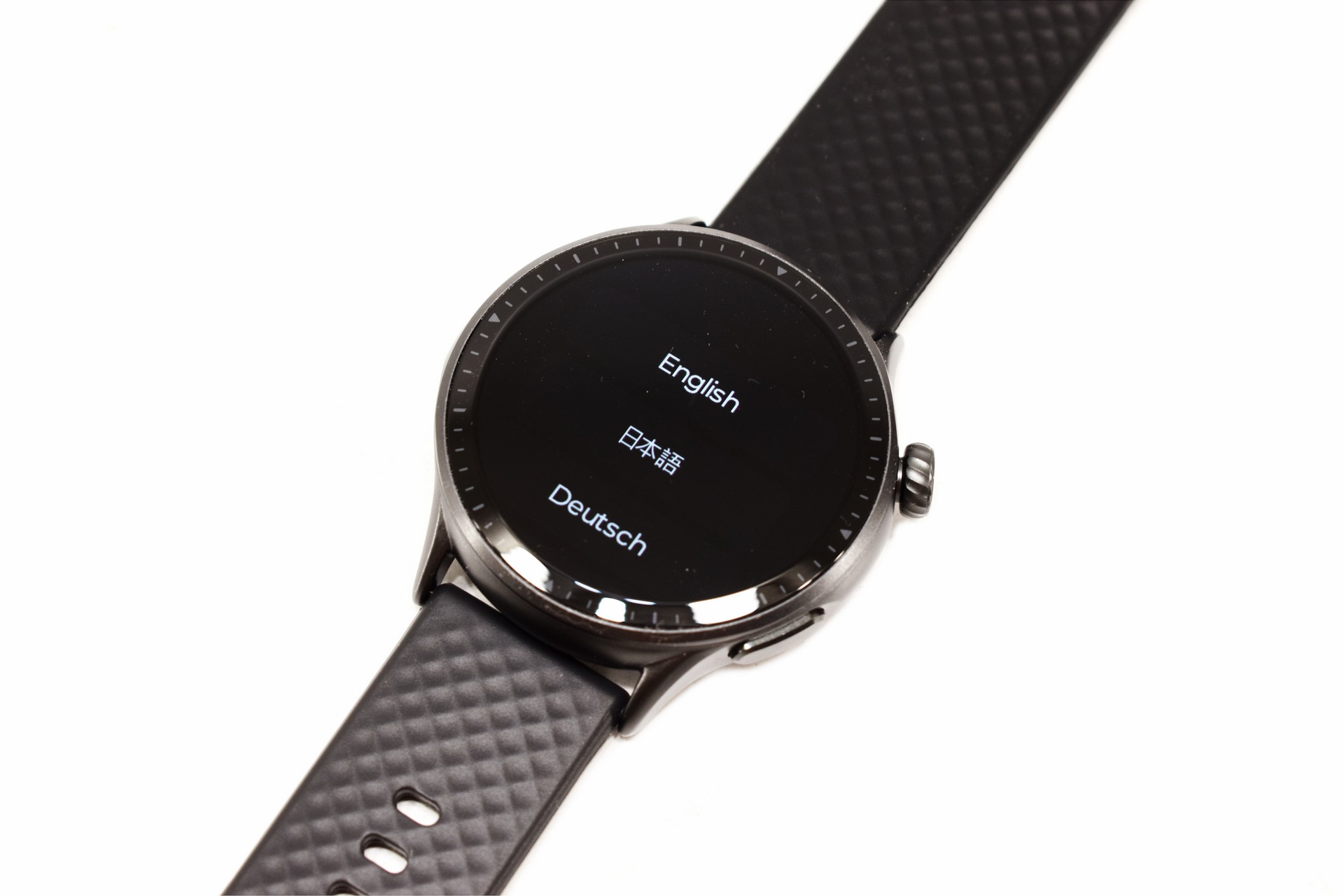
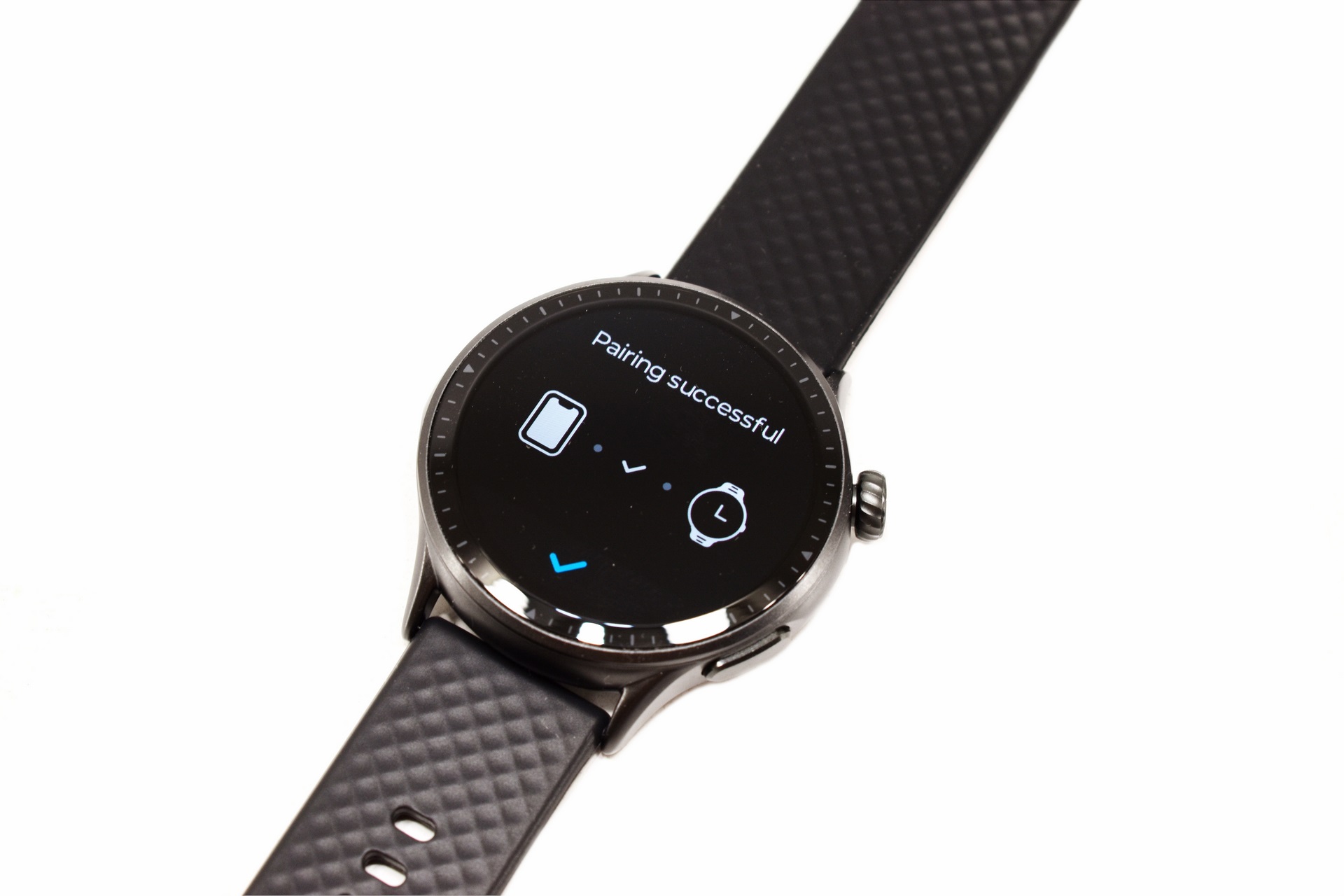
The first time you'll turn the GTR3 on you'll need to choose the language and pair it with your smartphone (via the Runmefit app).
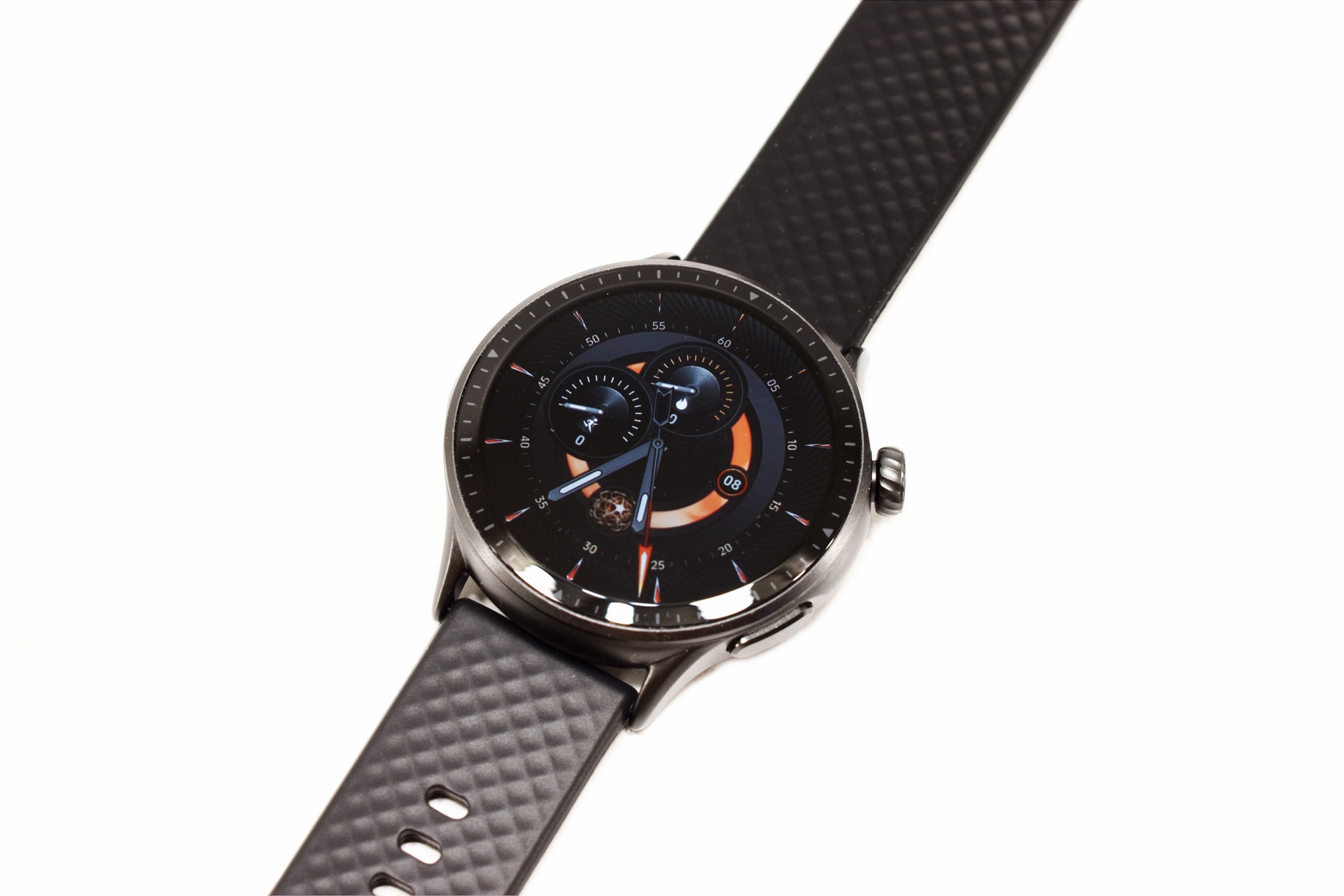
After that you'll see the initial/default screen which for me is among the top this smartwatch has to offer currently.
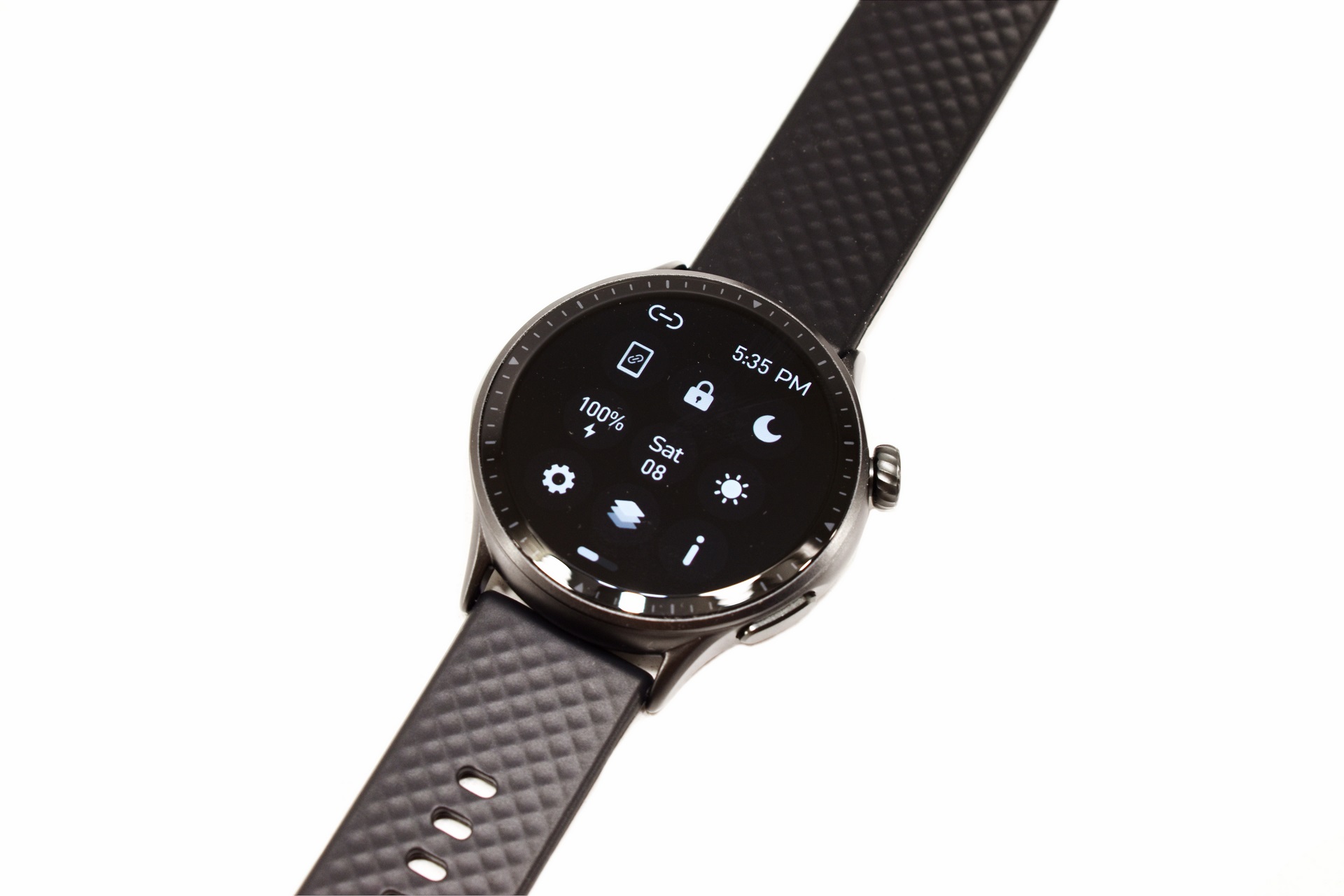
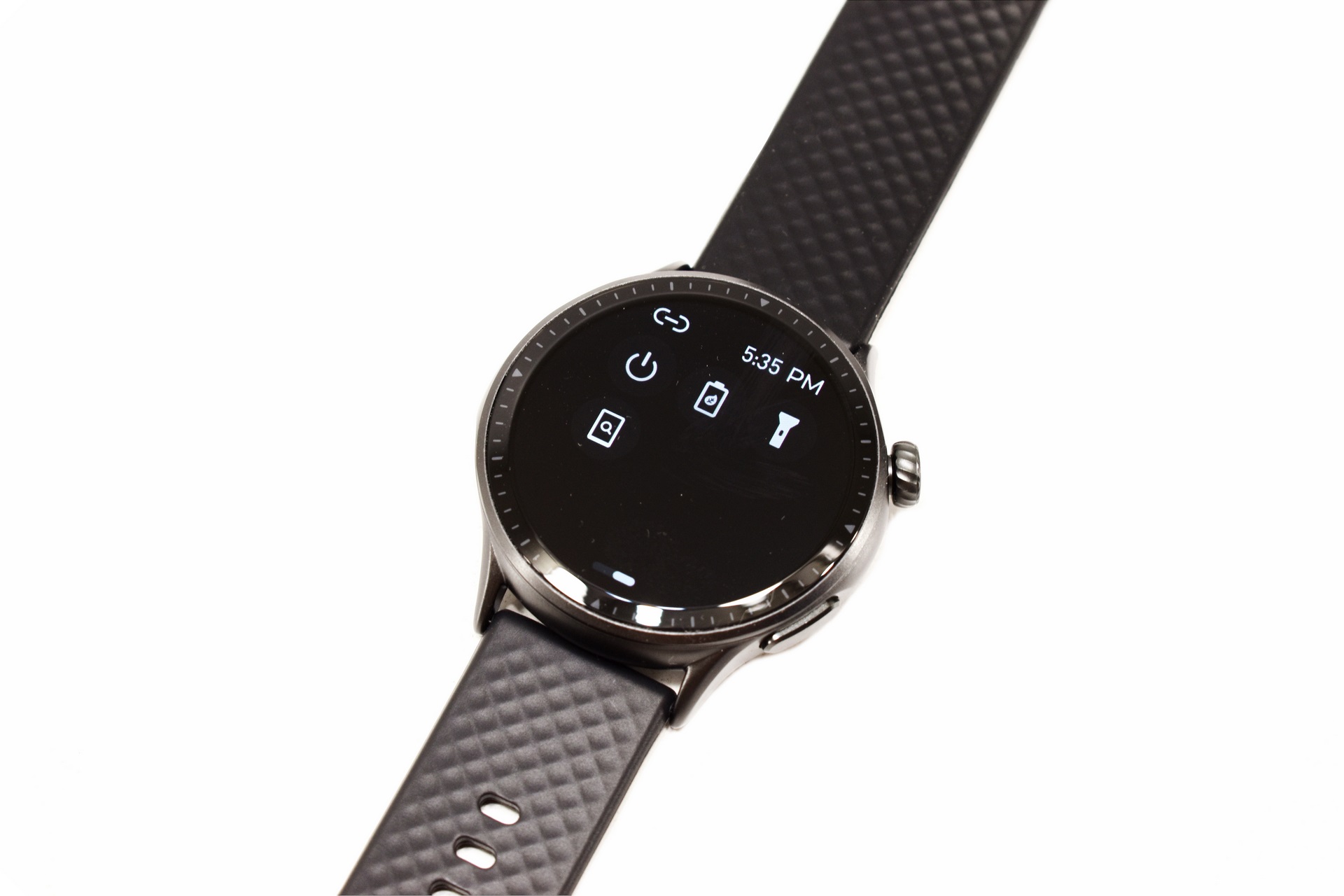
Pulling down the screen reveals all the quick settings such as phone pairing, lock, do not disturb mode, battery life, date, brightness, settings, menu view, about page, on/off, power save mode, flashlight mode and phone disconnection.
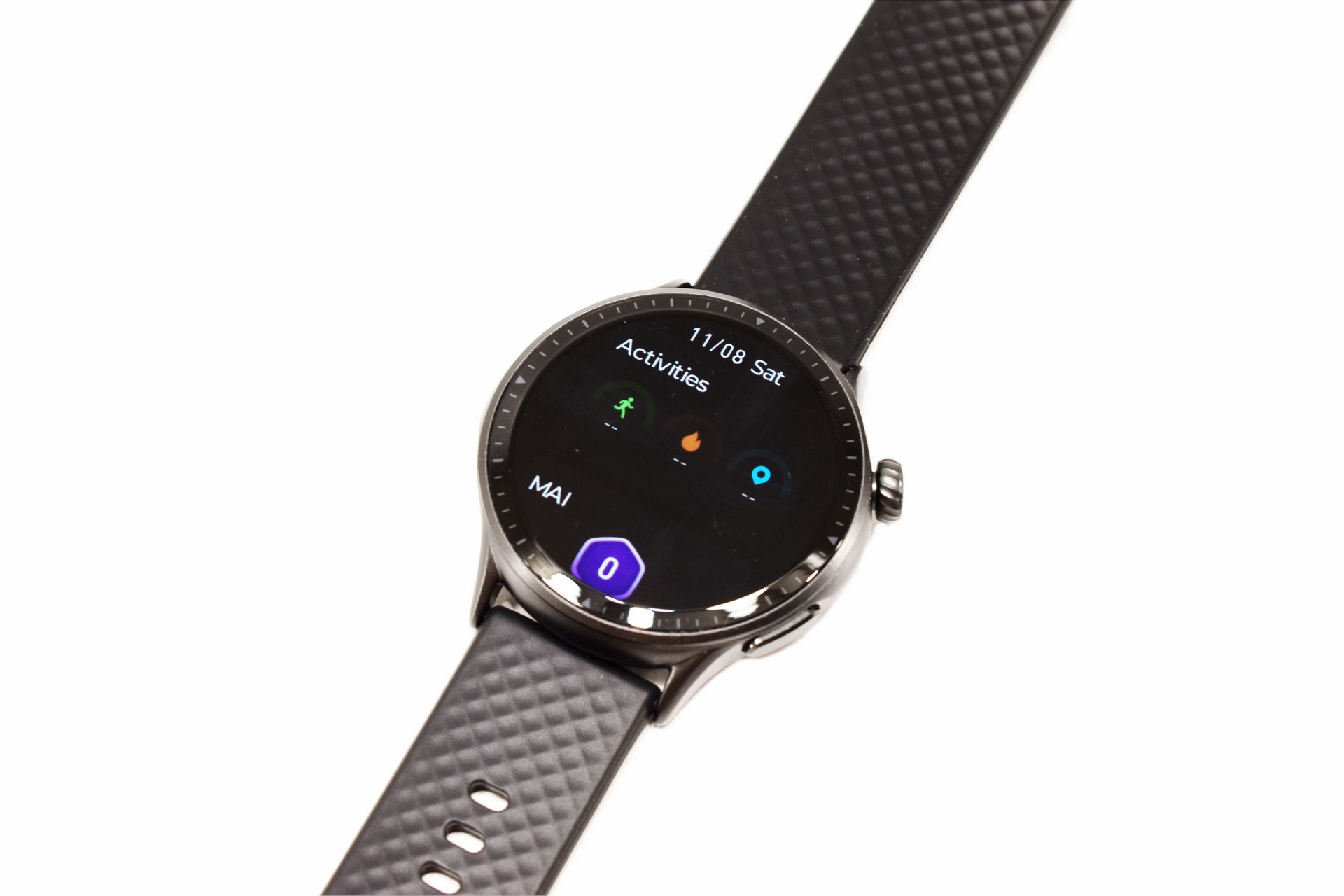
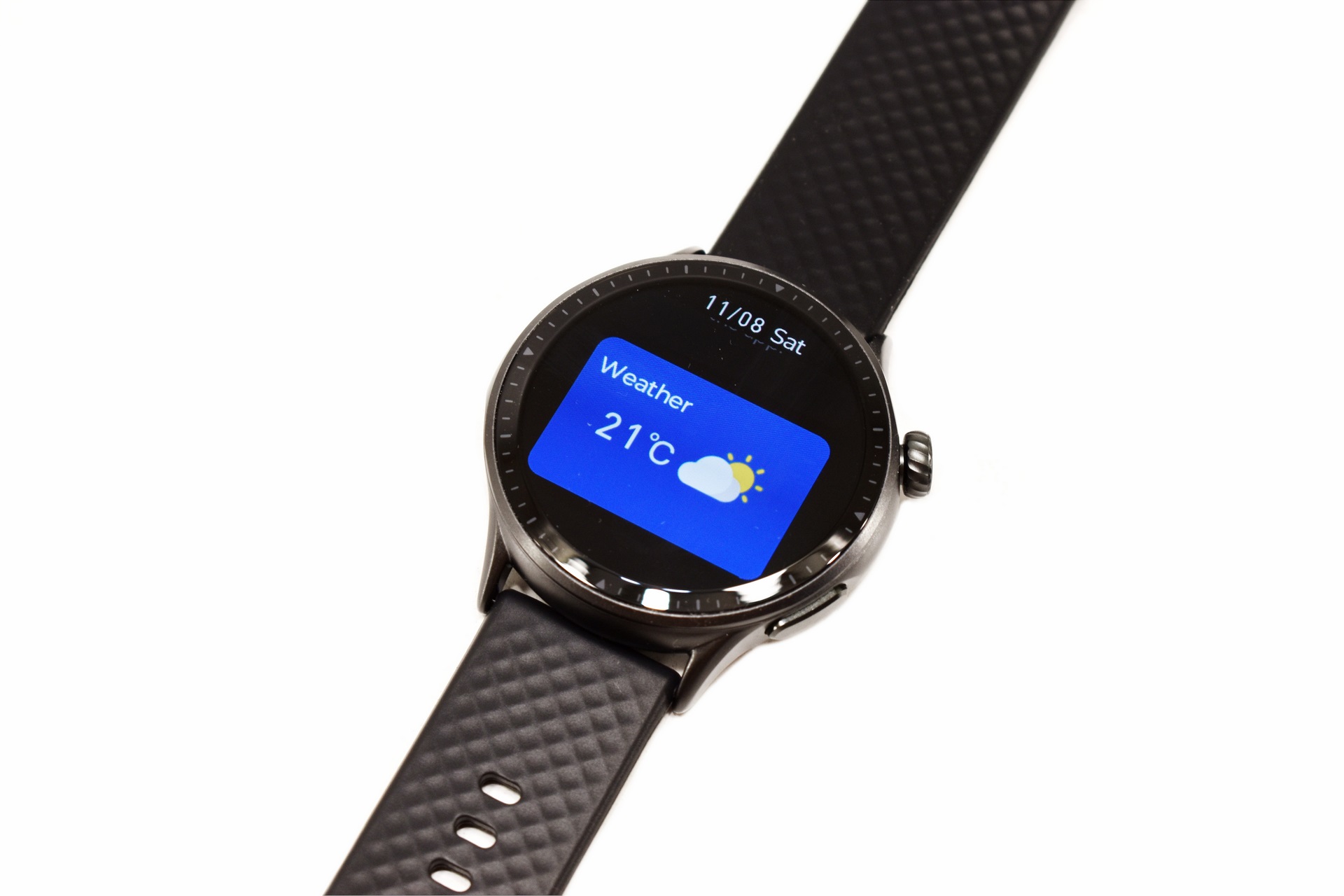
Dragging the left side allows you to access your activity and MAI stats, check the weather, listen to music and enable the sleep track function.
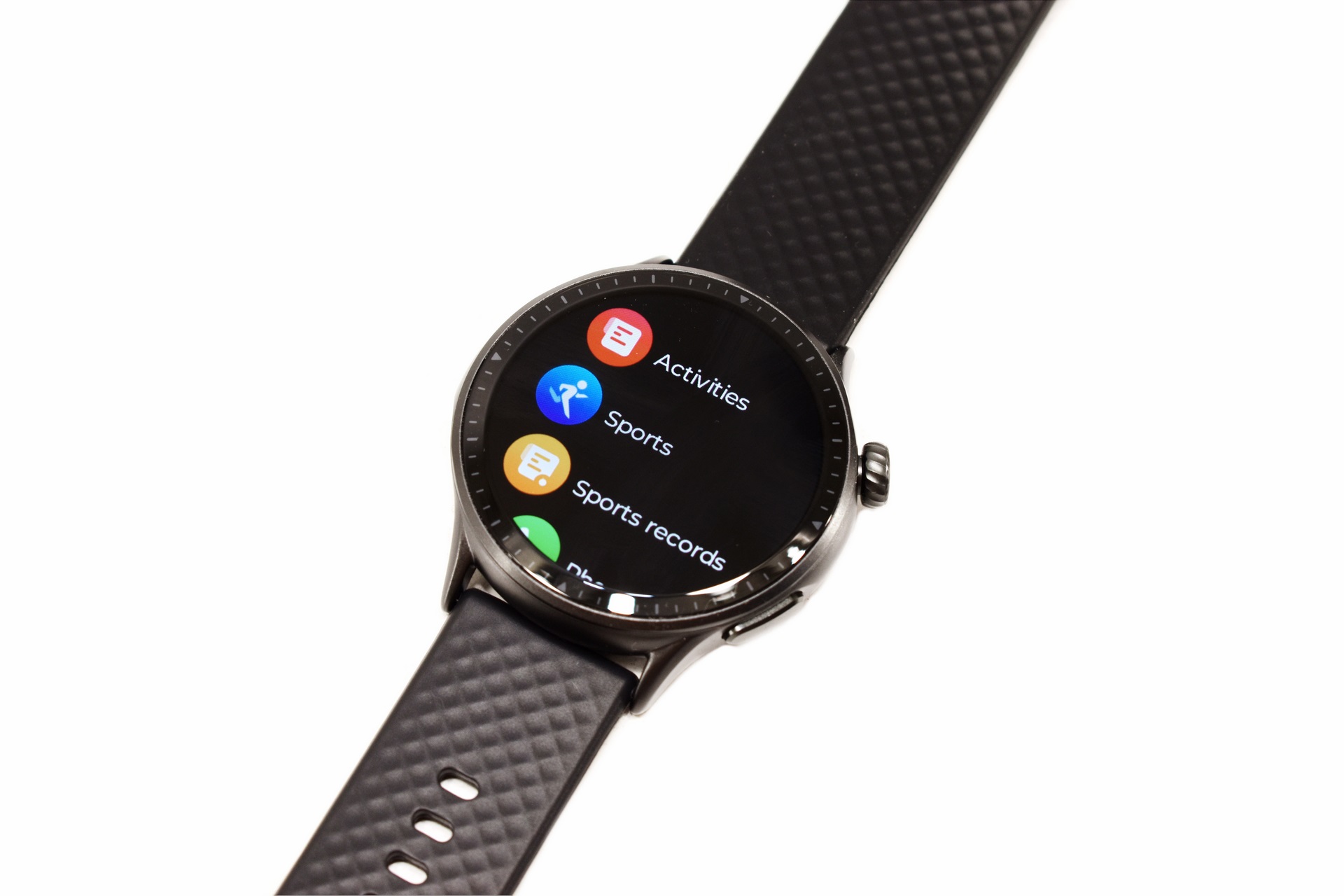
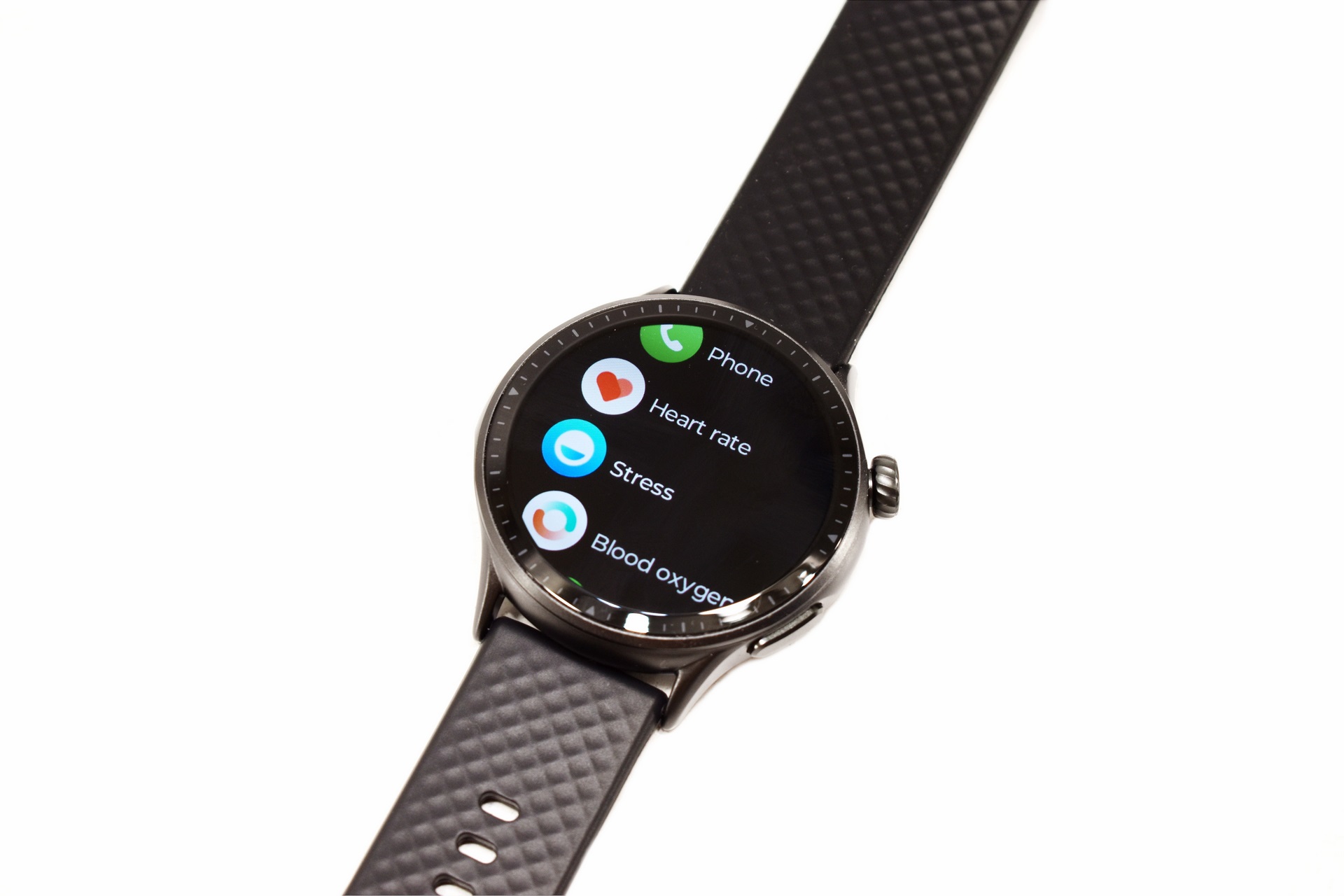
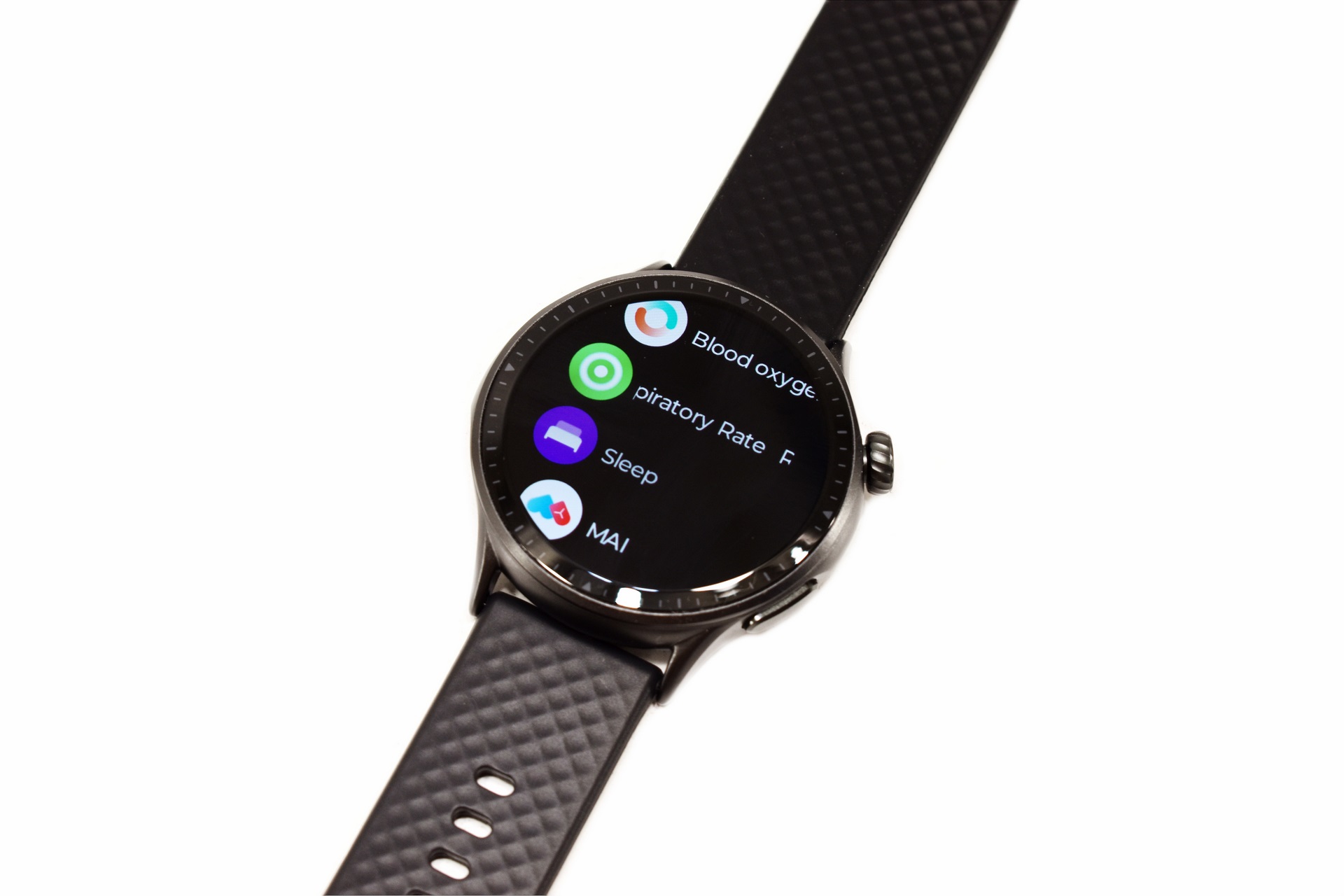
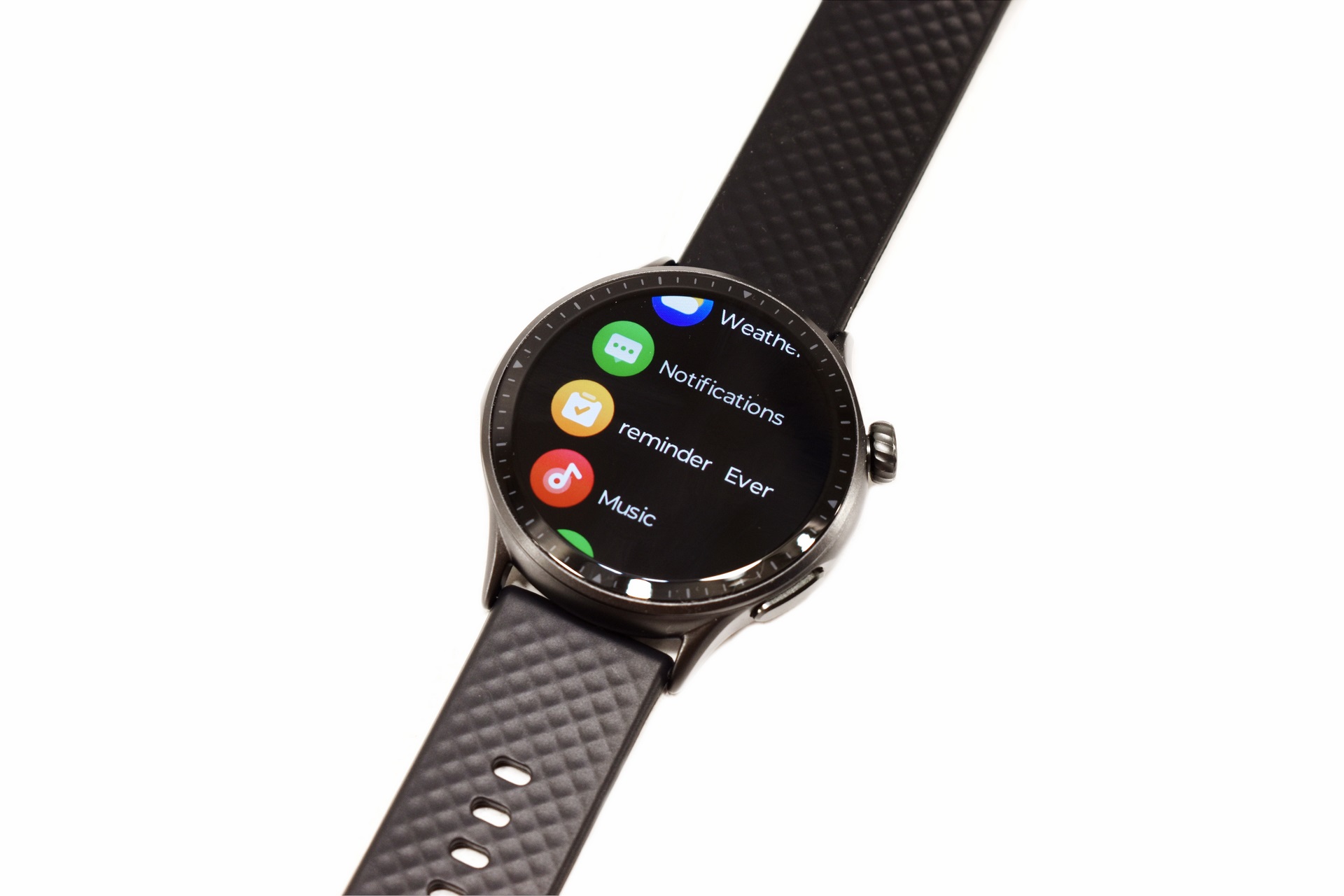
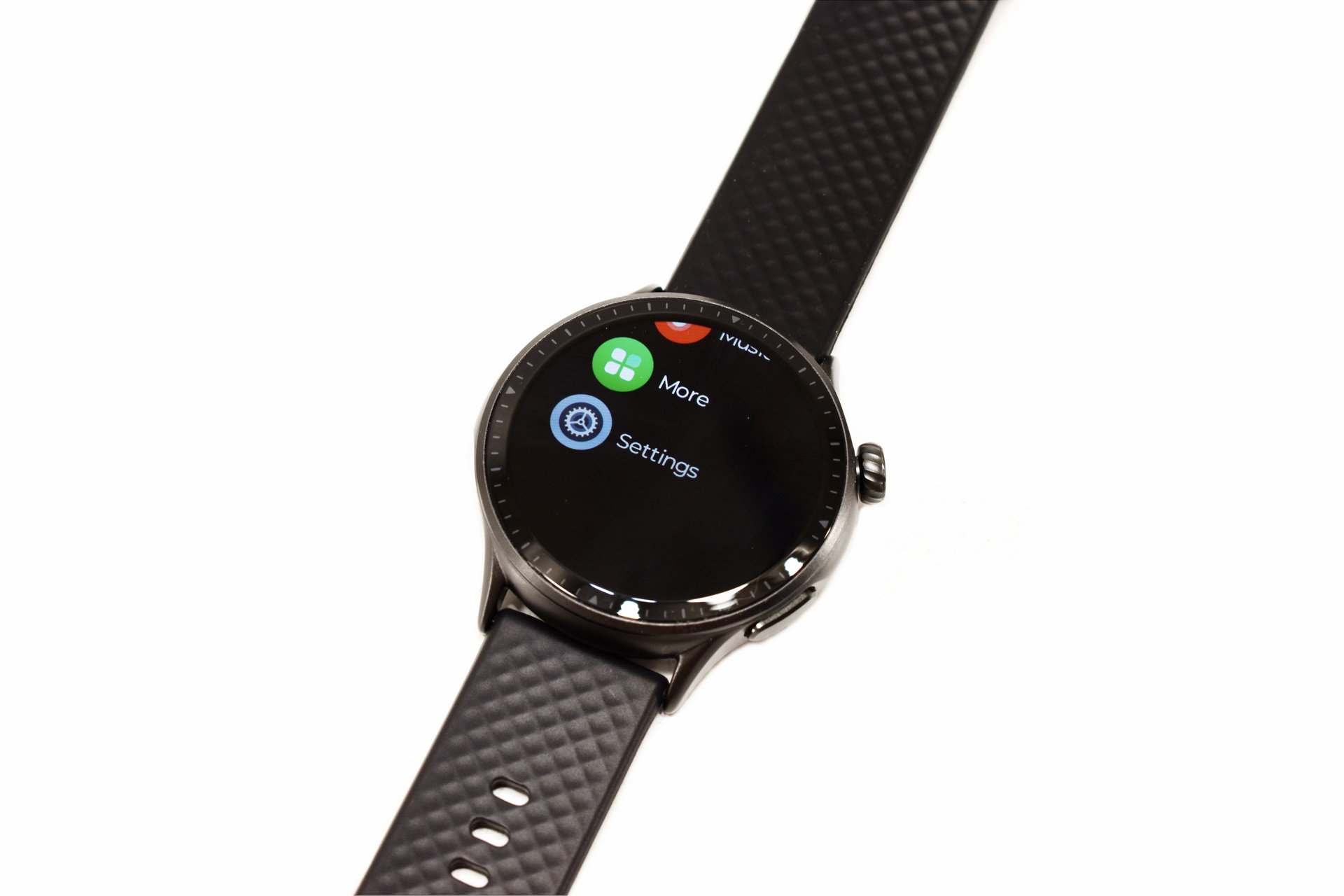
Pressing the top button launches the main tab from where you can choose all functions from sports, activities, phone calls, heart rate, oxygen, stress and respiratory measurement to weather, listening to music and accessing the settings tab.
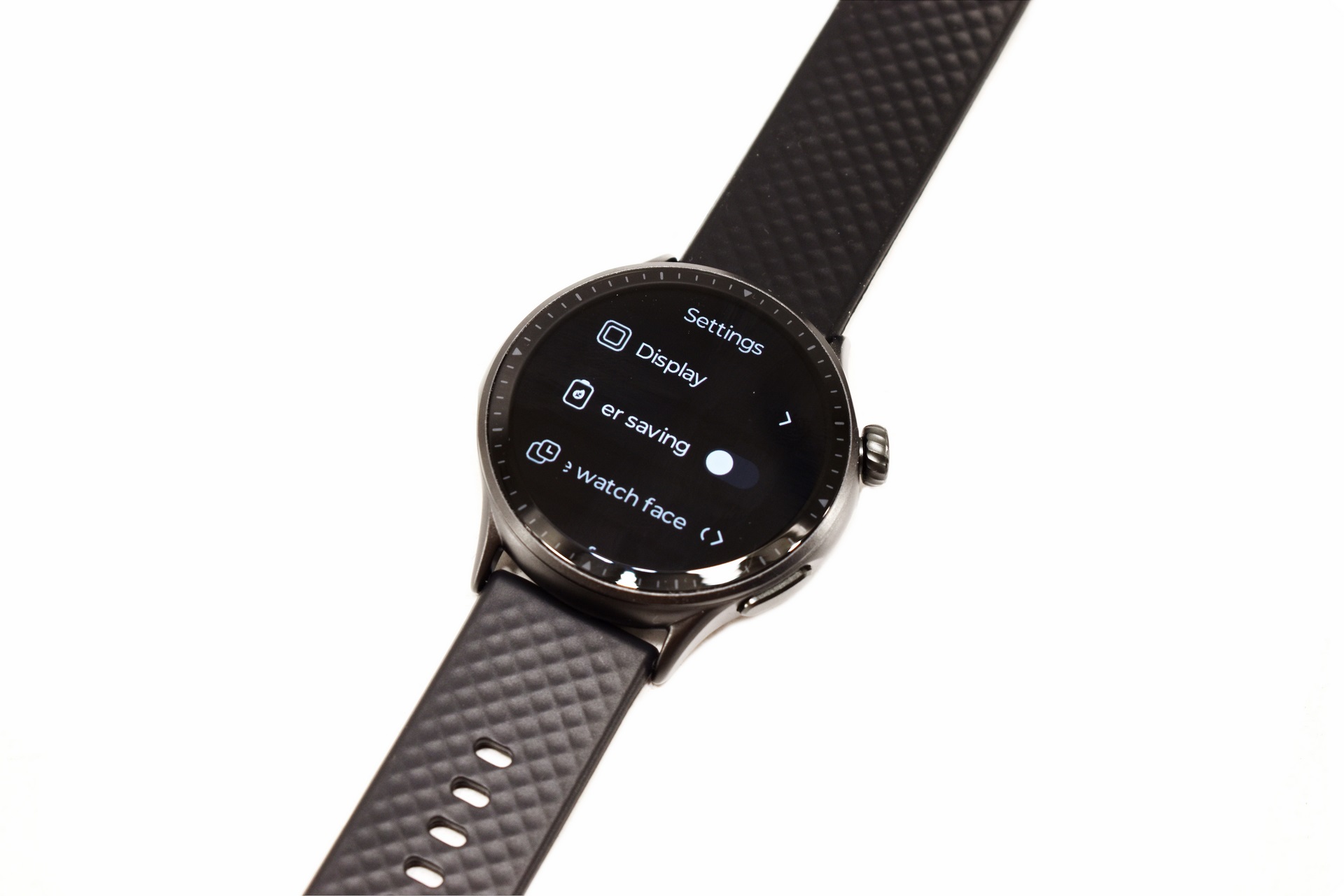
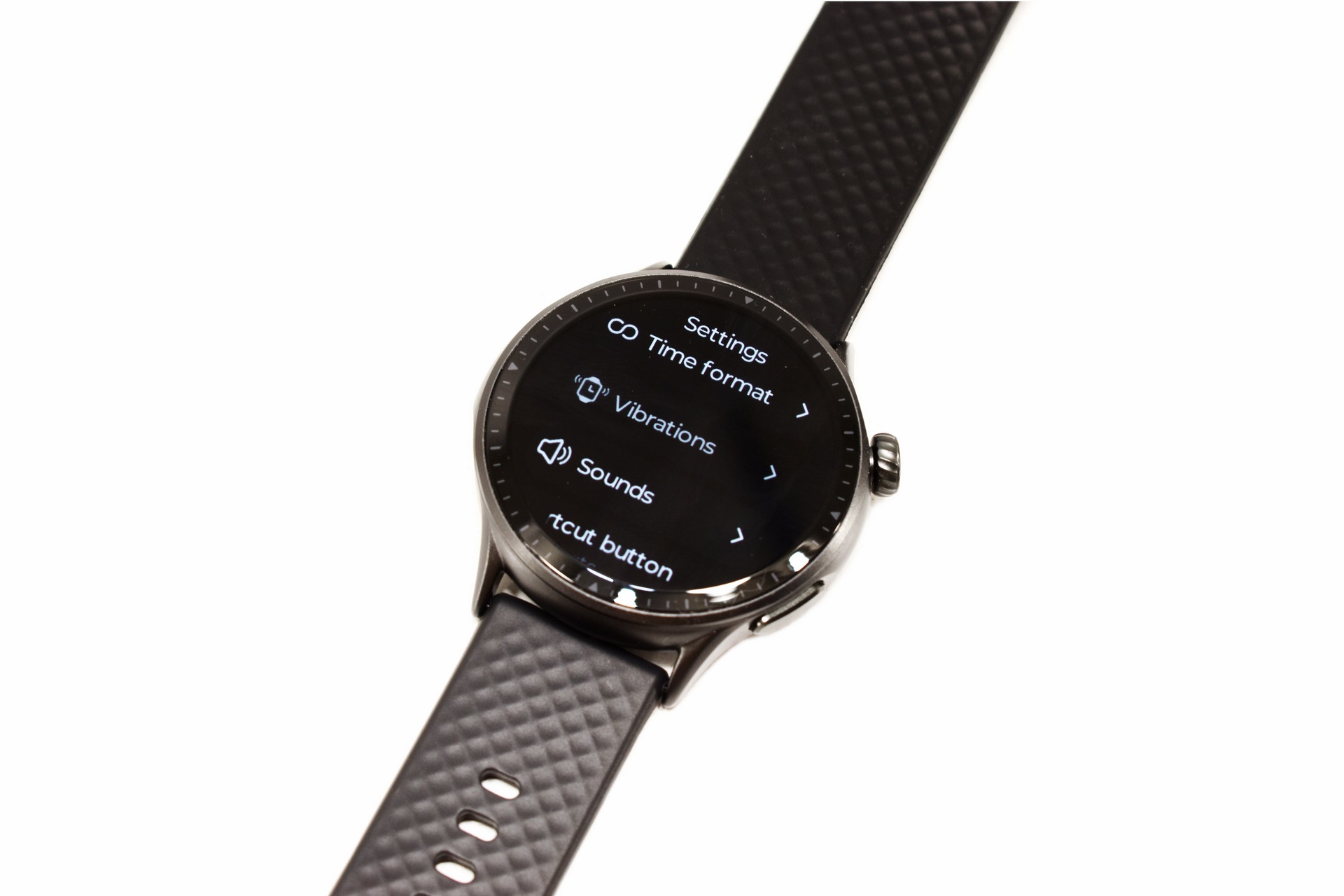
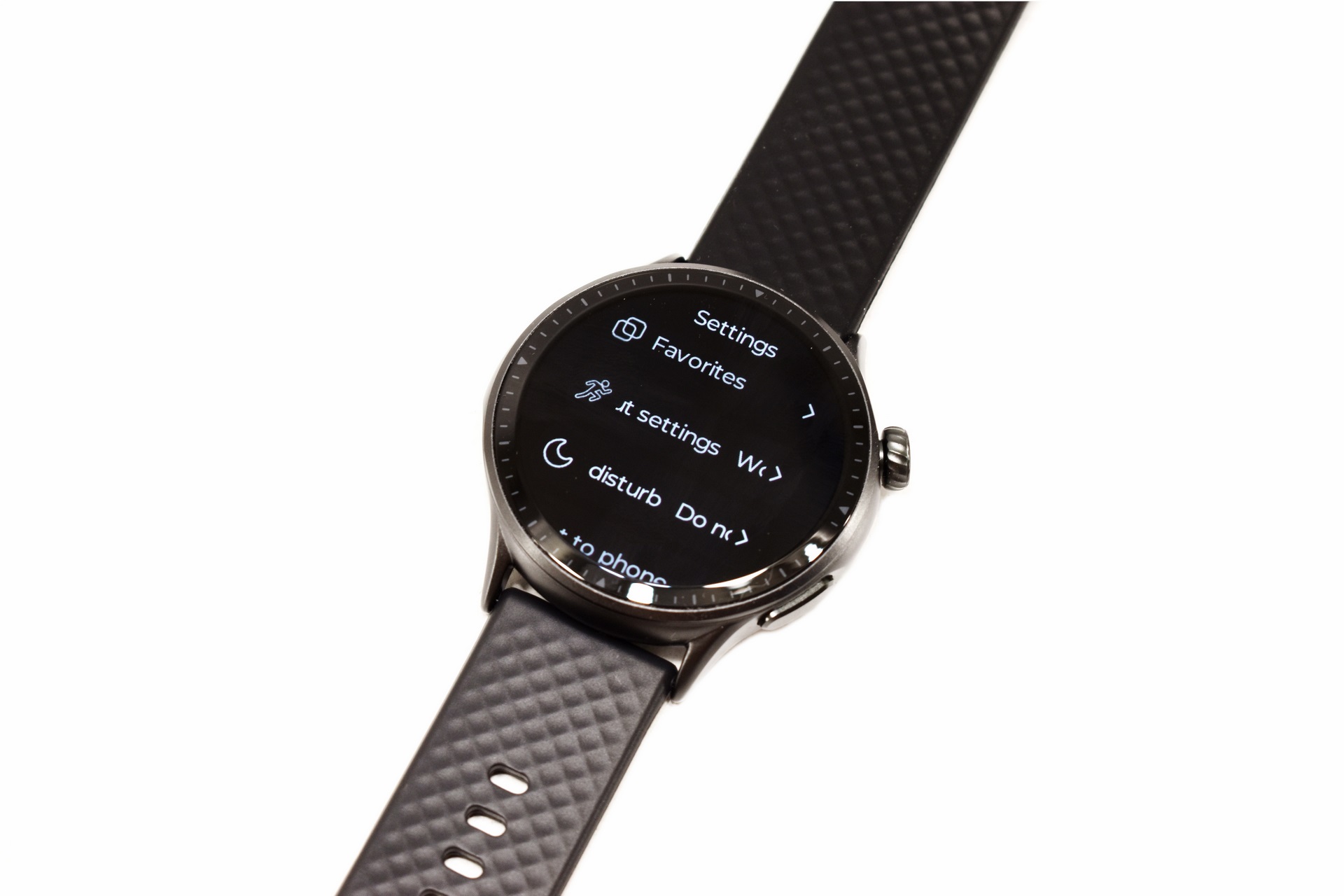
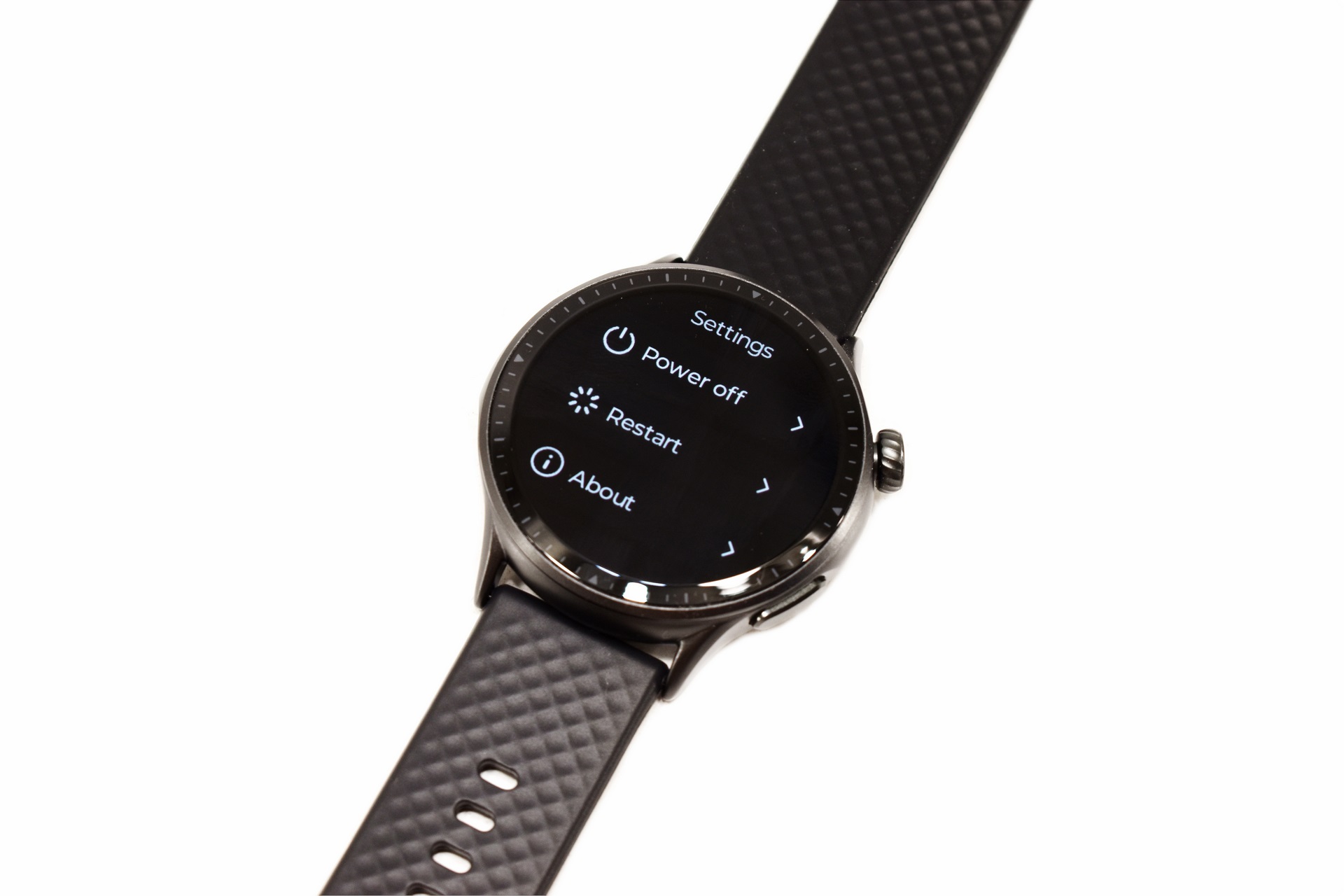
Inside the settings tab you'll be able to adjust the display settings, enable/disable power save, change the watch face, set the time format, adjust feedback (vibrations and/or sounds), enable do not disturb and turn off or restart the smartwatch.
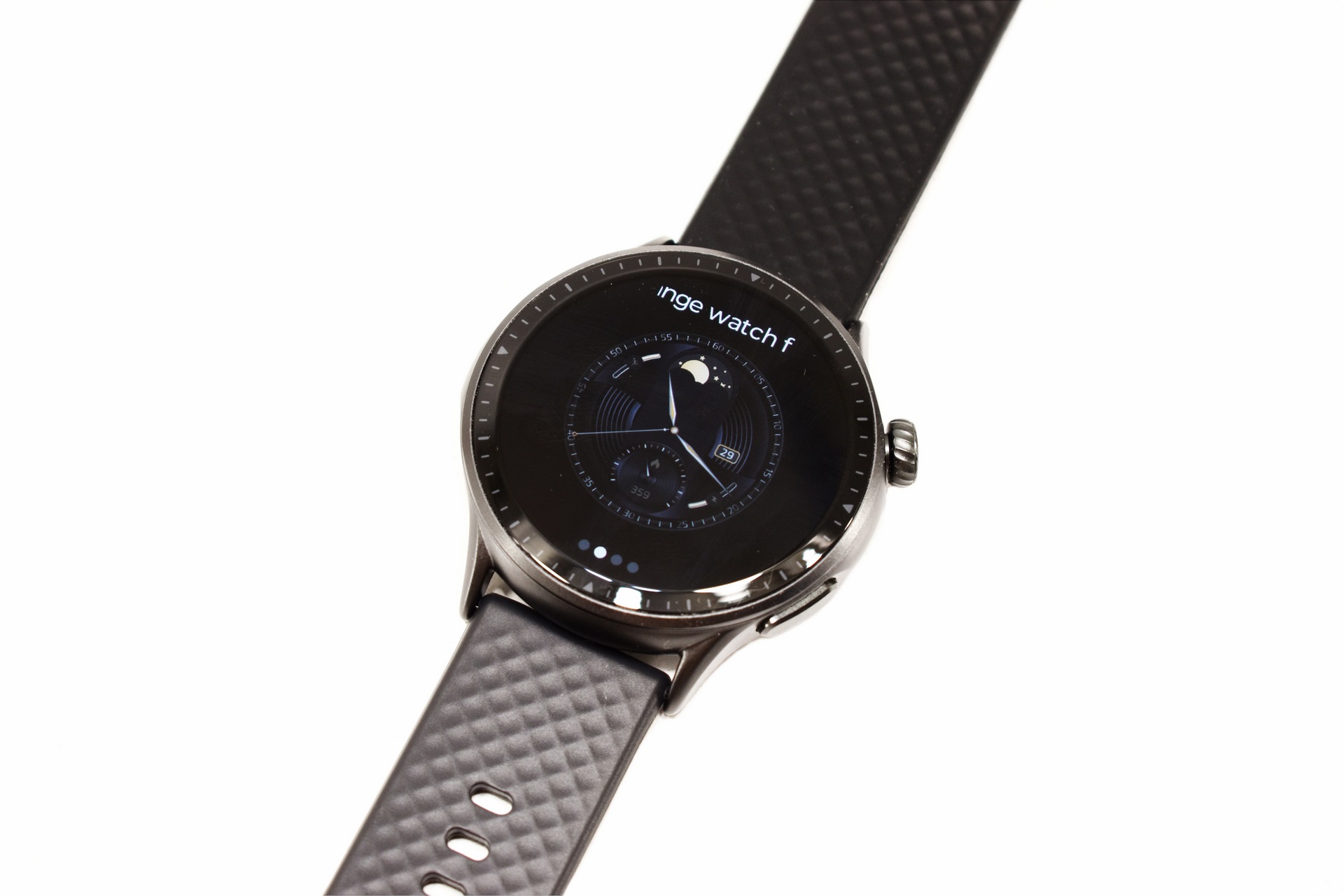
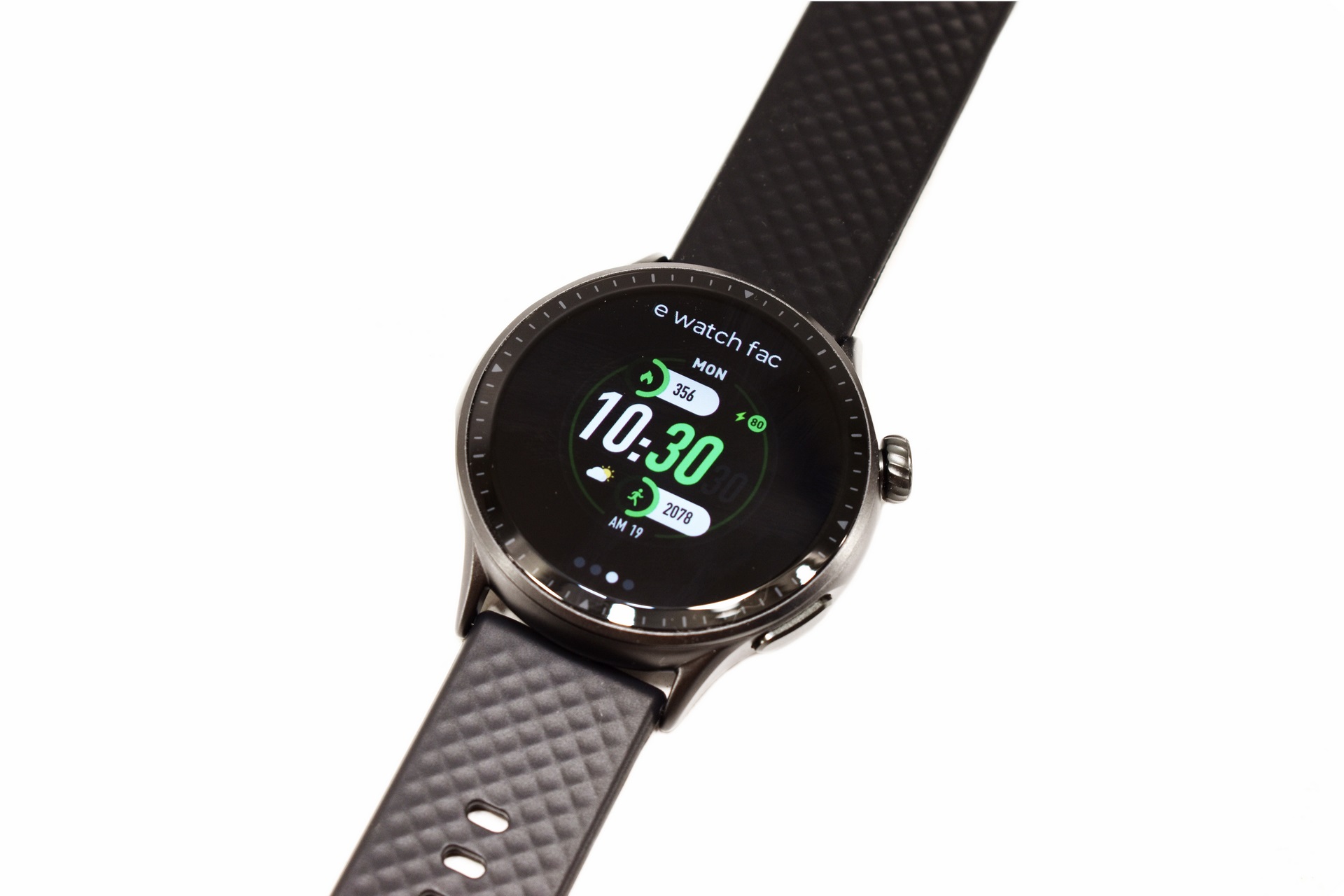
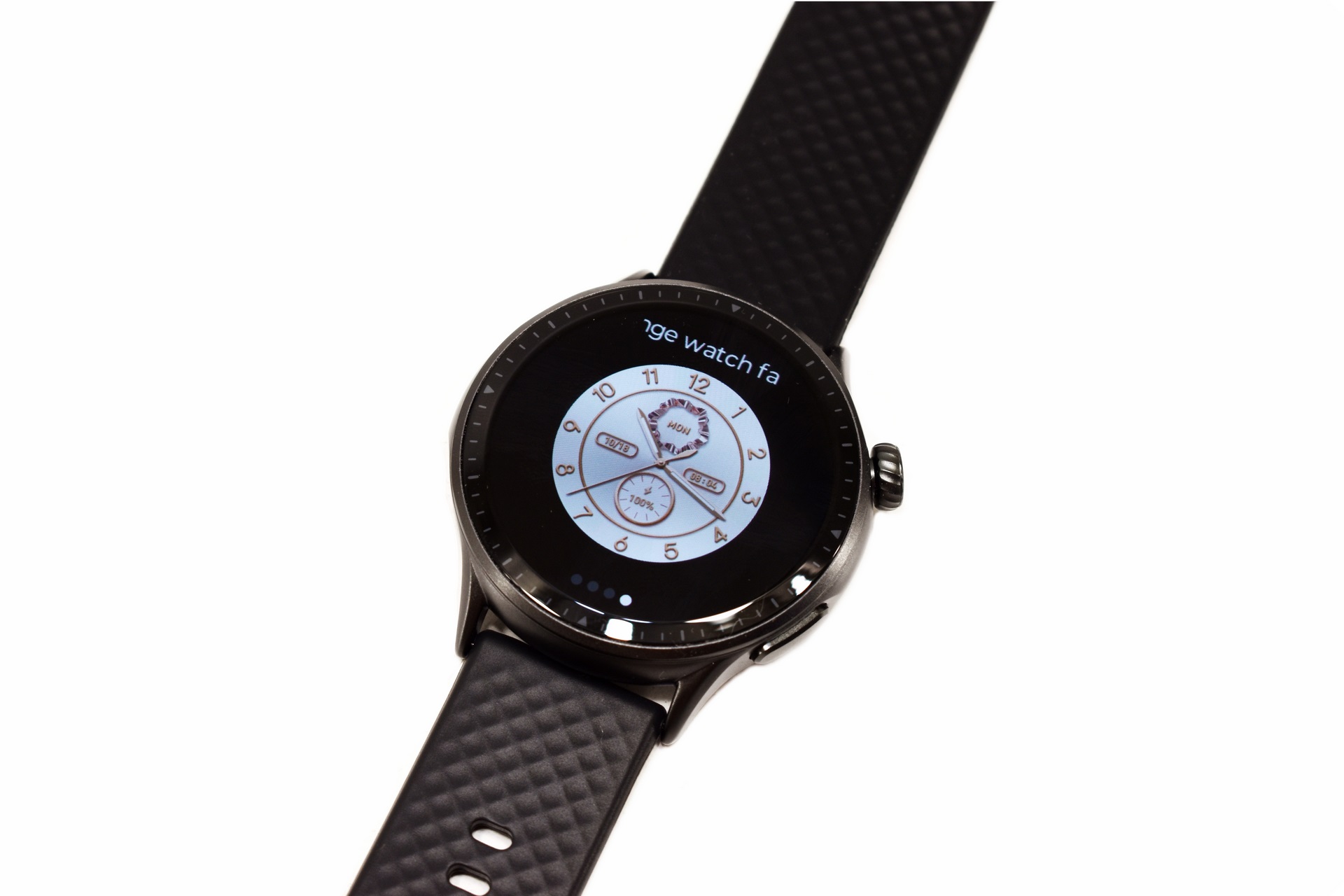
Above you can see 3 more watch faces of the GTR3 (short video available on TikTok and YouTube).